Locations
The Locations section is where you manage the physical sites where your classes take place. Each location can have one or more rooms, and those rooms determine where classes are held and how many students can attend. Locations also store contact information and USCG approval details.
Navigating the Locations List
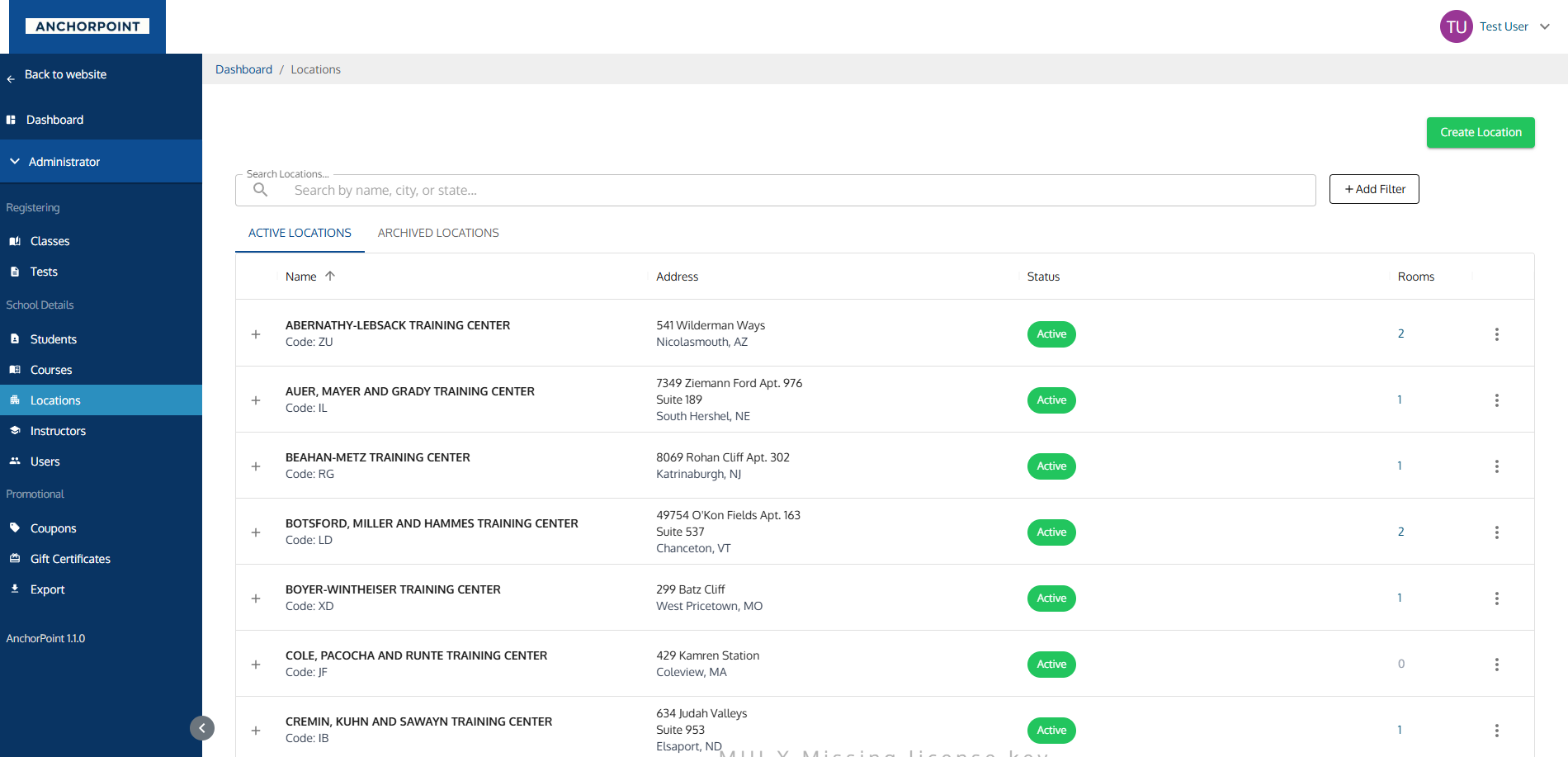
When you open Admin > Locations, you'll see a table of all your locations.
What Each Column Shows
| Column | What It Shows |
|---|---|
| Name | The location name (uppercase) and its internal code |
| Address | Street address, second line (if any), and city/state |
| Status | A chip showing Active (green) or Archived (red) |
| Rooms | The number of rooms at this location |
| Actions | A menu button with additional options |
Clicking a row opens the location drawer.
Searching and Filtering
- Quick Search: Type in the search bar to find locations by name, city, or state.
- Location Code: Filter by a location's internal code.
- Archive Tabs: Switch between Active and Archived using the tabs above the table.
Sorting
Click the Name or Address column headers to sort. The default sort is by name (A-Z).
Exporting
The Export button beside Create Location takes you to the Export center with the Locations data type already selected. See Exports.
Creating a Location
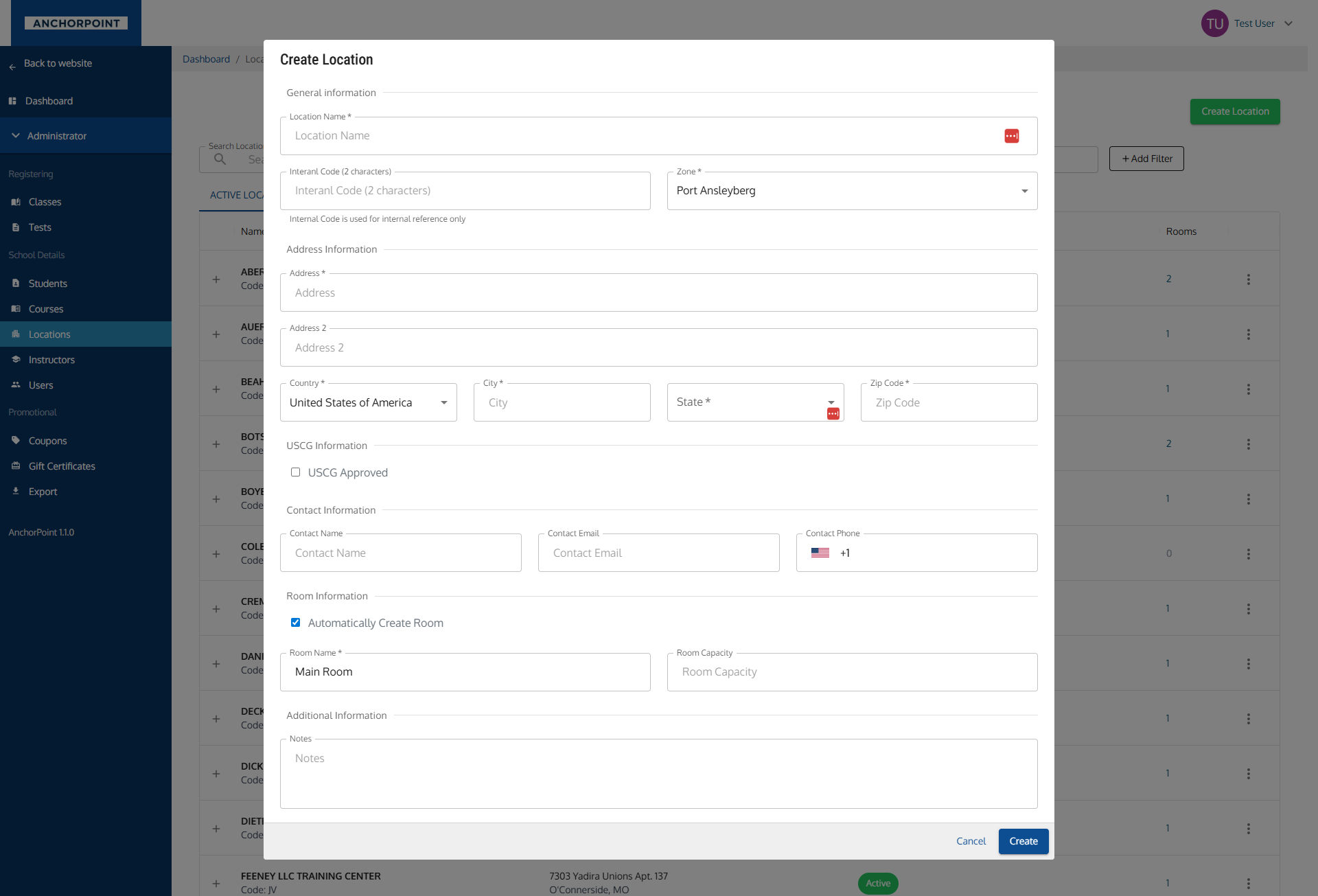
Click the Create Location button in the top-right corner to open the creation form.
General Information
| Field | Required? | Notes |
|---|---|---|
| Location Name | Yes | The name of the physical site. |
| Internal Code | No | A 2-character code used internally (e.g., "HQ", "NE"). Must be exactly 2 characters if set. |
The internal code field is labelled Interanl Code (2 characters) on screen. That's a known typo in the app — it's the field described above.
Address Information
| Field | Required? | Notes |
|---|---|---|
| Address | Yes | Street address. |
| Address 2 | No | Suite, floor, building, etc. |
| Country | Yes | Defaults to "United States of America". |
| City | Yes | |
| State | Yes | Only appears when the selected country has states or provinces. |
| Zip Code | Yes |
USCG Information
| Field | Required? | Notes |
|---|---|---|
| USCG Approved | No | Check this box if the location is USCG approved. Checking it reveals the date fields below. |
| USCG Approved Date | No | The date USCG approval was granted. |
| USCG Expiration Date | No | When the approval expires. |
The date fields only appear when the "USCG Approved" checkbox is checked.
Contact Information
| Field | Required? | Notes |
|---|---|---|
| Contact Name | No | The primary contact person at this location. |
| Contact Email | No | |
| Contact Phone | No | Formatted phone input. |
Room Information
When creating a location, you have the option to create a room at the same time.
| Field | Required? | Notes |
|---|---|---|
| Automatically Create Room | No | Checked by default. Uncheck if you don't want to create a room right away. |
| Room Name | Yes (if creating) | Defaults to "Main Room". |
| Room Capacity | No | The maximum number of students the room can hold. |
Room fields only appear when "Automatically Create Room" is checked.
Additional Information
| Field | Required? | Notes |
|---|---|---|
| Notes | No | Internal notes about this location. |
Viewing a Location
Click any row to open the location drawer. The title is the location name.
Header Chips
| Chip | What It Means |
|---|---|
| Archived | The location has been archived and isn't available for new classes |
| USCG Valid | USCG approval is current |
| USCG 12d left | Approval expires within 30 days — the chip counts down the days |
| USCG Expired | Approval has lapsed |
Tabs
The drawer has two tabs: Overview and Rooms.
Overview Tab
Read-only detail, grouped into sections. Anything missing shows as (Not provided).
| Section | What It Shows |
|---|---|
| Location Info | Code, and the full address |
| USCG Information | Approved and expiration dates. Only appears when USCG approved. |
| Contact Info | Contact Person, Email, Phone |
| Location Notes | Internal notes — facility details, scheduling, or admin context |
Location Notes save automatically as you type.
Rooms Tab
Every room configured at this location, split into Active and Archived sub-tabs.
Each room shows its name plus chips for Capacity, square footage, and USCG Approved / USCG Not Approved. A USCG expiration date and any note appear underneath.
Use the Create Room button to add another. See Managing Rooms below.
Updating a Location
Choose Manage Location from the drawer menu or a row's three-dot menu. The drawer switches to a single Basic Info tab containing the same fields as the create form, minus the auto-create room section.
Click Save Changes to apply, or Cancel to discard. If you close the drawer with unsaved edits, you'll be asked to confirm.
Managing Rooms
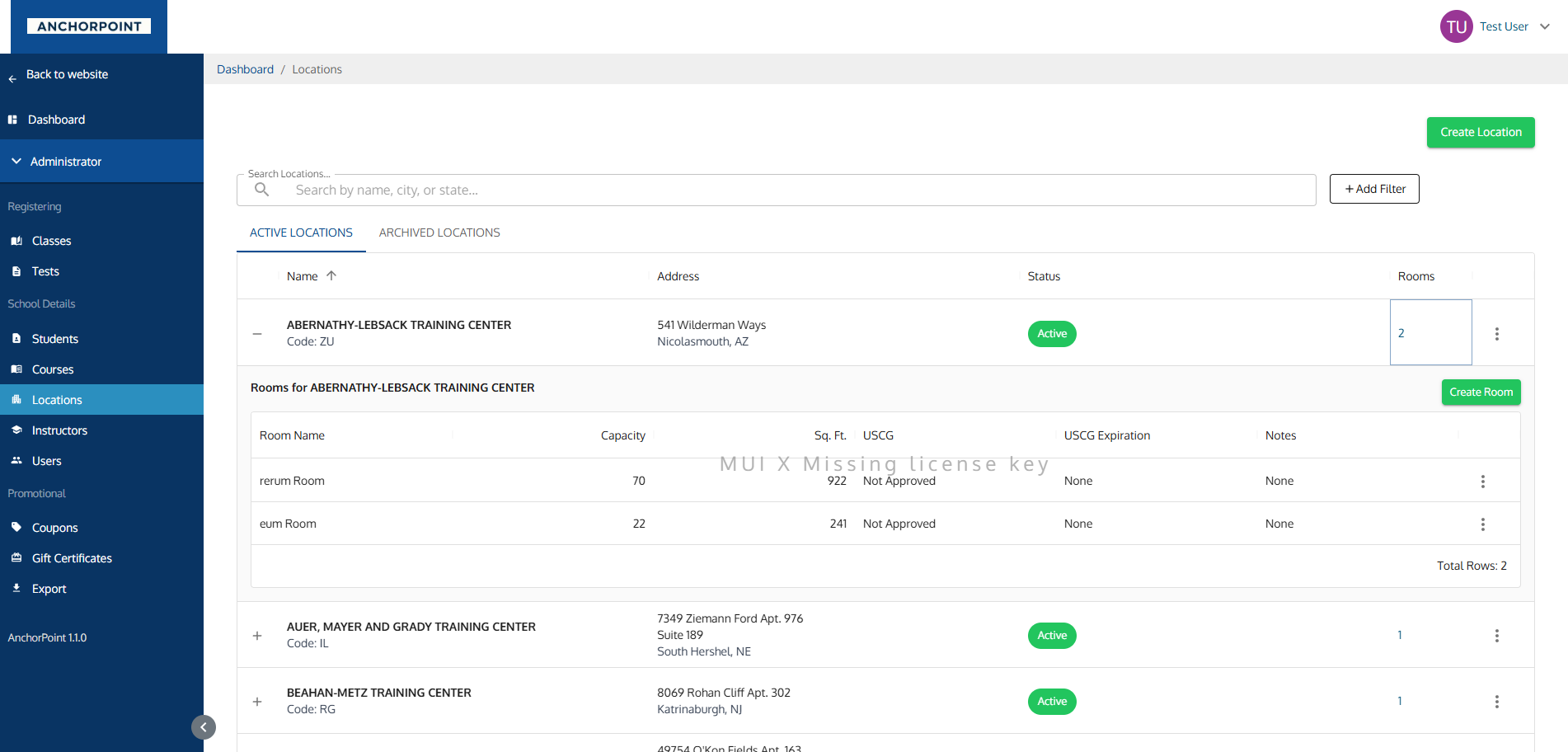
Rooms are managed from the Rooms tab of the location drawer.
Creating a Room
You can get to the room form two ways:
- Choose Create Room from the location's row menu — this opens the drawer on the Rooms tab with the form already open.
- Open the drawer, go to the Rooms tab, and click Create Room.
Room Form Fields
| Field | Required? | Notes |
|---|---|---|
| Room Name | Yes | A descriptive name for the room. |
| Capacity | No | Maximum number of students. This can determine class capacity. |
| Room Square Footage | No | The physical size of the room. |
| USCG Approved | No | Check to reveal the date fields. |
| USCG Approved Date | No | Only shown when USCG Approved is checked. |
| USCG Expiration Date | No | Only shown when USCG Approved is checked. |
| Notes | No | Internal notes about the room. |
Room Actions
From the three-dot menu on each room:
| Action | What It Does |
|---|---|
| Manage Room | Opens the edit form for the room |
| Duplicate Room | Creates a copy of the room with the same settings |
| Archive Room / Unarchive Room | Moves the room between the Active and Archived sub-tabs |
Archiving a Location
Archiving takes a location out of circulation without losing the history of classes held there.
Choose Archive Location from a row menu or the drawer menu. Unarchive Location brings it back.
There is no delete for locations. Archiving is how you retire a site, and it keeps your class history intact.
Actions & Menus
From the Locations List
The three-dot menu on each location row offers:
| Action | What It Does |
|---|---|
| Manage Location | Opens the drawer in edit mode |
| Archive Location / Unarchive Location | Moves the location to the archived or active list |
| Manage Rooms | Opens the drawer on the Rooms tab |
| Create Room | Opens the drawer on the Rooms tab with the create form open |
From the Location Drawer
The drawer's own menu offers Manage Location (hidden while you're already editing) and Archive Location / Unarchive Location.
When Things Are Disabled
| What's Disabled | Why |
|---|---|
| Delete | Locations can't be deleted at all — archive them instead. |
| Archive / Unarchive buttons | Temporarily disabled while the action is processing. |
| Manage Location in the drawer menu | Hidden while you're already in edit mode. |
| State field | Only appears when the selected country has states or provinces. |
| USCG date fields | Only visible when the "USCG Approved" checkbox is checked. |
| Room name and capacity fields | Only visible on the create form when "Automatically Create Room" is checked. |
| Archived rooms | Archived rooms can't be assigned to new classes. Unarchive one to use it again. |
Key Relationships
- Rooms: Each location can have multiple rooms. Rooms define capacity for classes scheduled at that location.
- Classes: When you schedule a class, you assign it a location and room. The room's capacity can determine how many students can enroll.
Tips & Notes
- Create a room when you create a location. The "Automatically Create Room" option is checked by default — take advantage of it to save a step.
- Room capacity matters. When a class is assigned to a room, the room's capacity can be used as the class capacity. Make sure room capacities are accurate.
- Use the internal code to create short, recognizable identifiers for your locations (e.g., "HQ" for headquarters, "SF" for San Francisco).
- The Duplicate Room feature is handy when you have several similar rooms at one site — duplicate one and just change the name and capacity.
- Archive instead of retiring by hand. Archiving preserves the history of classes held at a location while keeping it out of the way.
- Watch the USCG chip. The drawer header warns you when approval expires within 30 days, which is usually enough notice to renew before it lapses.
- Contact information is for logistics. Store the site manager's details here so whoever runs the class knows who to call.