Students
The Students section is where you manage your student roster. You can create new student profiles, view their class history, payments and certificates, update their personal information, and manage their class registrations. Every person who enrolls in a class has a student record here.
Navigating the Students List
When you open Admin > Students, you'll see a table of all students in the system.
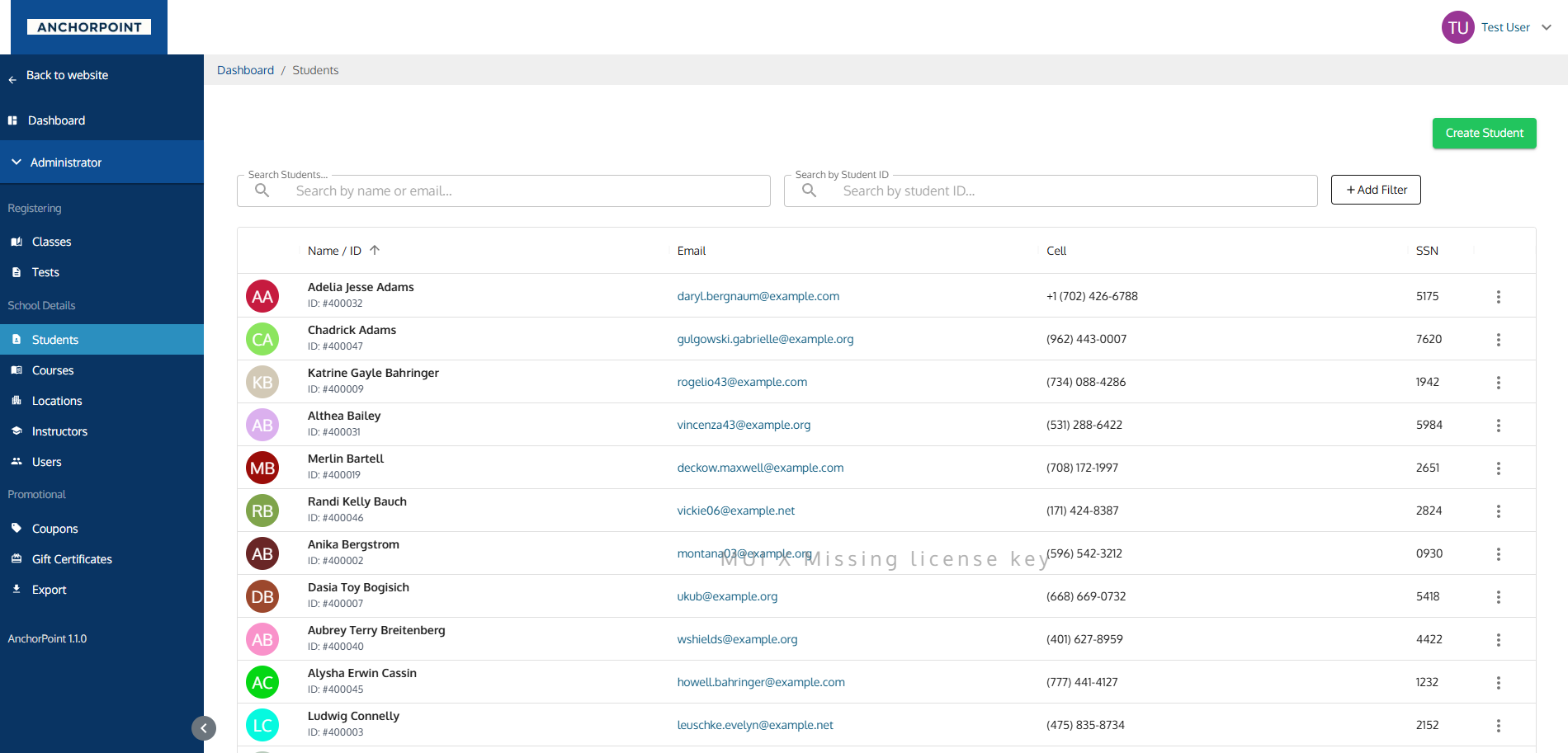
What Each Column Shows
| Column | What It Shows |
|---|---|
| Avatar | A circular icon with the student's initials |
| Name / ID | The student's full name (bold) and their student ID number below |
| Clickable email address | |
| Cell | Cell phone number, or "None" if not on file |
| SSN | Last 4 digits of their Social Security Number |
| Actions | A menu button with additional options |
Searching and Filtering
- Quick Search: Type in the search bar to find students by name or email.
- Student ID Search: Search by the student's ID number.
- Filters: Filter by phone number, email, or SSN using the filter options.
Sorting
Click any sortable column header to sort. The default sort is by last name (A-Z).
Exporting
The Export button beside Create Student takes you to the Export center with the Students data type already selected. See Exports.
Creating a Student
Click the Create Student button in the top-right corner to open the creation form.
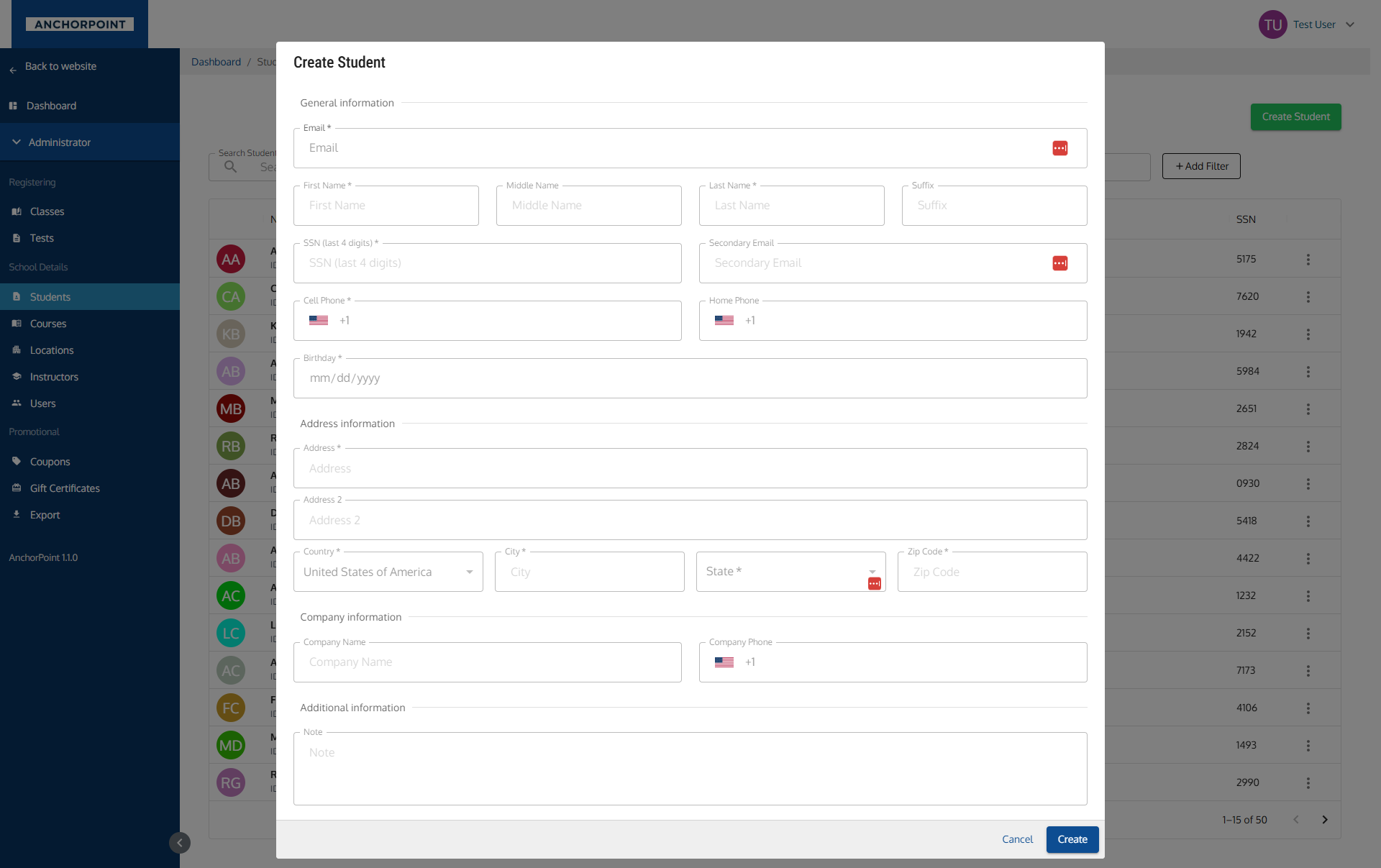
How the Form Works
The create student form uses an email-first workflow. You start by entering the student's email address, and most other fields remain locked until a valid email is entered.
What happens when you enter an email:
- The system checks if a user with that email already exists.
- If the email belongs to an existing user who can be added as a student: an alert appears telling you which role they currently have, and their information fills in automatically. The student record is linked to that account.
- If the email already belongs to a student: an error appears — you cannot create a duplicate.
- If the email is new: all fields unlock and you can fill them in manually.
General Information
| Field | Required? | Notes |
|---|---|---|
| Yes | Must be a valid email. Checked against existing accounts. | |
| First Name | Yes | Locked until a valid email is entered. |
| Middle Name | No | Locked until a valid email is entered. |
| Last Name | Yes | Locked until a valid email is entered. |
| Suffix | No | e.g., Jr., Sr., III |
| SSN | Yes | Last 4 digits only. |
| Secondary Email | No | An alternate email address. |
| Cell Phone | Yes | Locked until a valid email is entered. |
| Home Phone | No | |
| Birthday | Yes |
Address Information
| Field | Required? | Notes |
|---|---|---|
| Address | Yes | Street address. |
| Address 2 | No | Apartment, suite, etc. |
| Country | Yes | Defaults to "United States of America". |
| City | Yes | |
| State | Yes | Only appears when the selected country has states. |
| Zip Code | Yes | Numbers only. |
Company Information
| Field | Required? | Notes |
|---|---|---|
| Company Name | No | The student's employer. |
| Company Phone | No |
Additional Information
| Field | Required? | Notes |
|---|---|---|
| Note | No | Any additional notes about this student. |
Viewing a Student Profile
Click on any student row to open their detail page.
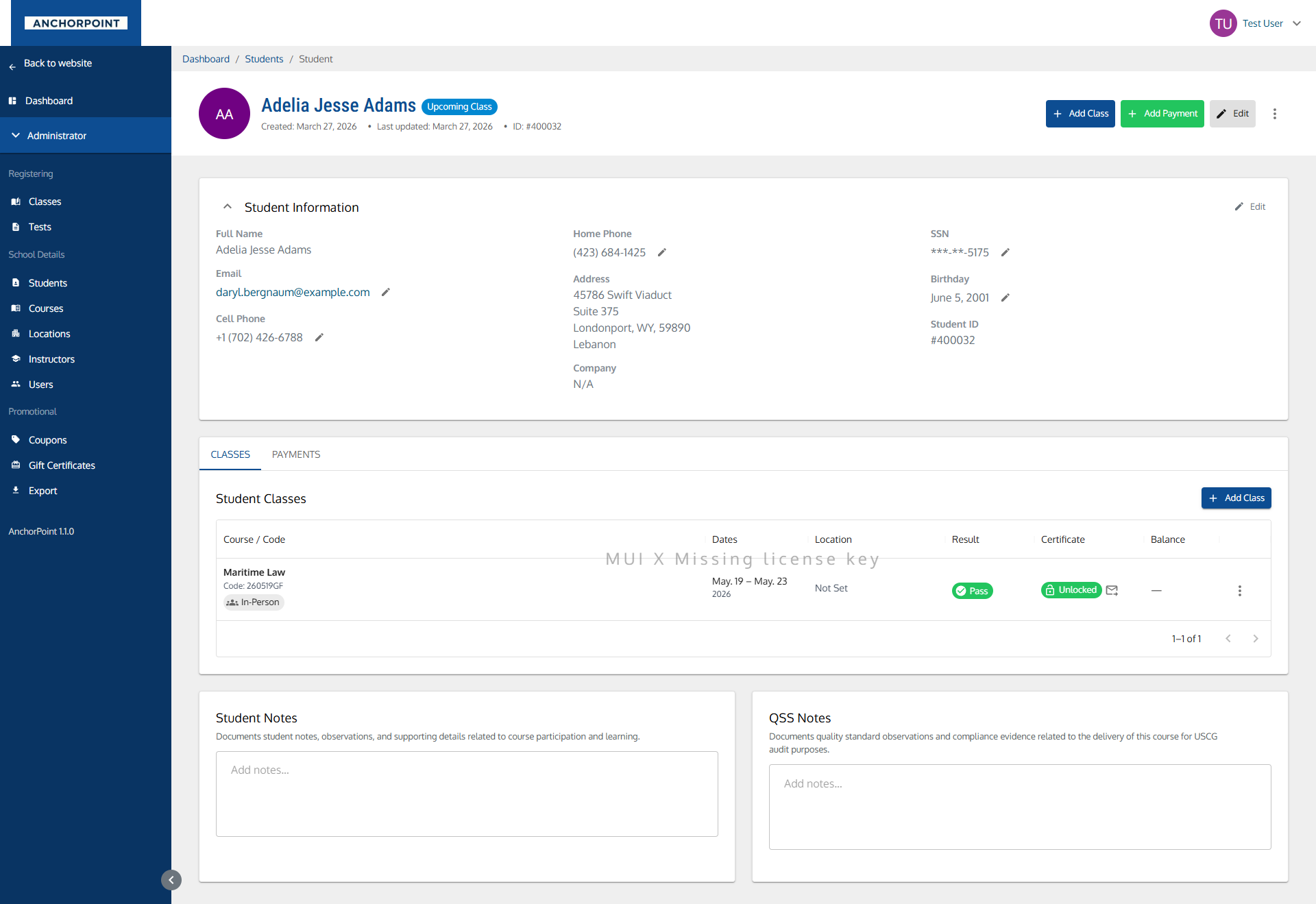
Header
At the top you'll see the student's avatar and full name, along with any status chips that apply:
| Chip | What It Means |
|---|---|
| Owes Balance | The student has an outstanding balance on at least one class |
| Upcoming Class | They're enrolled in a class that hasn't happened yet |
| Deferred | They have an active deferral waiting to be re-registered |
Beneath that: when the record was created, when it was last updated, and the student ID.
Action buttons:
- Add Class — enrolls the student in a class
- Add Payment — records a payment
- Edit — opens a drawer to update their personal information
- More menu — Update Password
Payments are taken in AnchorPoint itself, on the student's Payments tab. See Payments.
Contact Health Alert
If AnchorPoint can't reach the student, a warning appears above their details, and the affected field carries an Undeliverable chip showing how many messages have bounced — for example "Last bounced Mar 3, 2026 · mailbox full · email reminders paused".
Once a channel is marked undeliverable, automatic reminders through that channel stop. Correct the email address or phone number to start them again — the student won't receive class reminders until you do.
Student Information Card
A collapsible card showing the student's personal information. Many fields can be edited inline — click the field, change it, and it saves:
| Field | Notes |
|---|---|
| Full Name | |
| Inline editable. Checked for duplicates as you type. | |
| Cell Phone | Inline editable |
| Home Phone | Inline editable |
| Address | |
| Company | |
| SSN | Inline editable. Displayed masked, e.g. ***-**-1234. |
| Birthday | Inline editable |
| Student ID | Display only — this can't be changed |
Anything not on file shows as N/A.
Deferrals
When a student has an active deferral, a table appears listing the course they deferred from, the reason, notes, expected return, and how long they've been waiting. You can re-register them straight from here. See Deferrals.
Tabs
The detail page has three tabs: Classes, Payments, and Certificates.
Classes Tab
Titled Student Class History. Shows every class the student has registered for.
| Column | What It Shows |
|---|---|
| Course / Code | The course name and class code |
| Dates | Class dates, or "Self-paced" for online courses |
| Location | The site, or Online / Remote, or Not Set |
| Result | Pass, Fail, Cancelled, Deferred, or No Result |
| Certificate | Unlocked, Locked, or No Certificate, with the mailed date |
| Retake | Whether they're repeating the course |
| Balance | What they still owe on that class |
| Actions | A menu button with additional options |
Use the Status filter to show All, Active, Deferred, or Cancelled registrations. The download icon gives you the class history as a file. Add Class enrolls them in another class.
Clicking a row opens the registration drawer — see Registrations.
Payments Tab
Titled Student Payments. Every transaction on the student's account.
| Column | What It Shows |
|---|---|
| Amount / Date | The amount and date, with a chip: Paid, Refunded, Void, or Forfeited |
| Description | The payment method and any note |
| Processor ID | The transaction reference from the payment processor |
| Attached To | The class the payment was applied to, linking through to it |
| Billing | The billing address used |
Certificates Tab
Every certificate the student has earned.
| Column | What It Shows |
|---|---|
| Course / Code | The course the certificate is for |
| Dates | The class dates |
| Status | Unlocked or Locked |
| Test Passed / Mailed | When they passed, and when a copy was mailed, or "Not mailed" |
| Actions | A menu button with additional options |
| Action | What It Does |
|---|---|
| View Class | Opens the class page |
| Download PDF | Downloads the certificate |
| Email Certificate | Emails it to the student |
| Lock Certificate / Unlock Certificate | Controls whether the student can download it themselves |
Notes Sections
Two cards sit at the bottom, both saving automatically as you type:
- Student Notes — observations and supporting details about the student's course participation and learning
- QSS Notes — quality standard observations and compliance evidence for USCG audit purposes
Editing a Student
Click Edit in the header to open the Edit Student drawer.
| Section | Fields |
|---|---|
| General | First Name, Middle Name, Last Name, Suffix, Email, Cell Phone, Home Phone, SSN, Birthday |
| Address | Address, Address 2, Country, City, State, Zip |
| Company | Company Name, Company Phone |
Click Save to apply, or Cancel to discard. Closing the drawer with unsaved edits prompts you to confirm.
Save stays disabled if the email you've entered already belongs to another user.
Managing Student Classes
Adding a Student to a Class
Click Add Class from the header or the Classes tab.
| Field | Required? | Notes |
|---|---|---|
| Class | Yes | Classes the student is already in are excluded, and full classes can't be selected. |
| Retake | No | Check if the student is repeating the course. |
| Send Email Notification | No | Checked by default. |
Registration Actions
From the three-dot menu on each class row:
| Action | What It Does |
|---|---|
| View Class | Opens the class detail page in a new tab |
| Pass Student | Marks the student as passed for that class |
| Fail Student | Marks the student as failed for that class |
| More Options | Opens the registration drawer with its full action menu expanded |
Pass and Fail only appear when the student hasn't already been given that result. Everything else — certificates, payments, transfers, deferrals, and cancellation — lives in the registration drawer. See Registrations.
Actions & Menus
From the Students List
The three-dot menu on each row offers:
| Action | What It Does |
|---|---|
| Update Password | Opens a modal to set a new password for the student's account |
From the Student Detail Page
The More menu in the header offers the same Update Password option.
When Things Are Disabled
| What's Disabled | Why |
|---|---|
| Name, phone, SSN, and other fields on the create form | Locked until you enter a valid email address, so AnchorPoint can check whether the person already has an account. |
| Most fields after an email match | When the email belongs to an existing user, their information comes from that account and can't be edited here. |
| Create or Save with an email error | The email already belongs to another student. |
| State field | Only appears when the selected country has states or provinces. |
| Pass / Fail actions | Hidden when the student already has that result for the class. |
| Automatic reminders | Paused on any channel marked undeliverable. Fix the email or phone number to resume them. |
| Full classes in the Add Class picker | Classes at capacity can't be selected. Increase the class capacity first, or pick a different class. |
Icons on This Page
| Mark | Meaning |
|---|---|
| Initials on a colour | No profile photo uploaded. The colour carries no meaning. |
| Yellow contact banner | Both email and cell phone are failing. Reminders are paused. |
| Undeliverable · N bounces chip | That one channel is failing |
| Student Deferred chip | The student deferred themselves |
| Locked / Unlocked certificate chips | Whether the student can download it |
| Amber warning triangle | The student has overpaid on that registration |
→ Full list: Icons & Statuses
Key Relationships
- User Account: Each student is linked to a user account. The email address connects them, which is why the create form checks it first.
- Registrations: A student can be enrolled in many classes. Each enrollment is a separate registration with its own result, certificate, and balance. See Registrations.
- Payments: Payment history is tied to the student and attached to specific class registrations.
- Certificates: Certificates come from registrations where the student passed. The Certificates tab gathers them in one place.
- Deferrals: A deferred registration appears both here and on the Deferrals page.
- Student portal: Students sign in to see their own classes, payments, and certificates. See the Student Portal.
Tips & Notes
- Start with the email when creating a new student. If they already have an account — from registering online, for instance — their information fills in automatically and you avoid a duplicate.
- Use inline editing on the detail page for quick phone, email, or address corrections without opening the full edit drawer.
- Act on the contact health alert. An undeliverable email means the student stops receiving class reminders entirely — it's usually a typo worth two minutes to fix.
- Check the status chips first. Owes Balance and Deferred tell you at a glance whether this student needs follow-up before their next class.
- The Certificates tab is the fastest answer to "can you send me my certificate again?" — everything they've earned is in one list with Download and Email on each row.
- Filter the Classes tab by status. Defaulting to Active hides cancelled and deferred registrations, so switch to All when a student's history doesn't look complete.