Classes
The Classes section is where you schedule and manage training sessions for your courses. Each class ties together a course, a location and room, one or more instructors, and a roster of enrolled students. From here you schedule classes, track enrollment and capacity, configure reminder emails, and work through student results at the end.
Navigating the Classes List
When you open Admin > Classes, you'll see a table of your scheduled classes, split across three tabs by how the class is delivered.
The Three Tabs
| Tab | Covers | Table |
|---|---|---|
| In-Person | Classes taught in a room at a location | The full table described below |
| Online | Self-paced online coursework | A simplified table |
| Virtual | Live classes taught remotely | A simplified table |
The tab you're on is kept in the address bar, so you can bookmark or share a link to one.
The Online and Virtual tables are deliberately short, because dates, locations and rooms don't apply to them:
| Column | What It Shows |
|---|---|
| Course / Code | The course name and class code |
| Price | The cost of the class |
| # Students | How many are enrolled |
| Actions | Manage Class and Download Roster |
One search box covers both name and code. Everything below describes the In-Person tab unless it says otherwise.
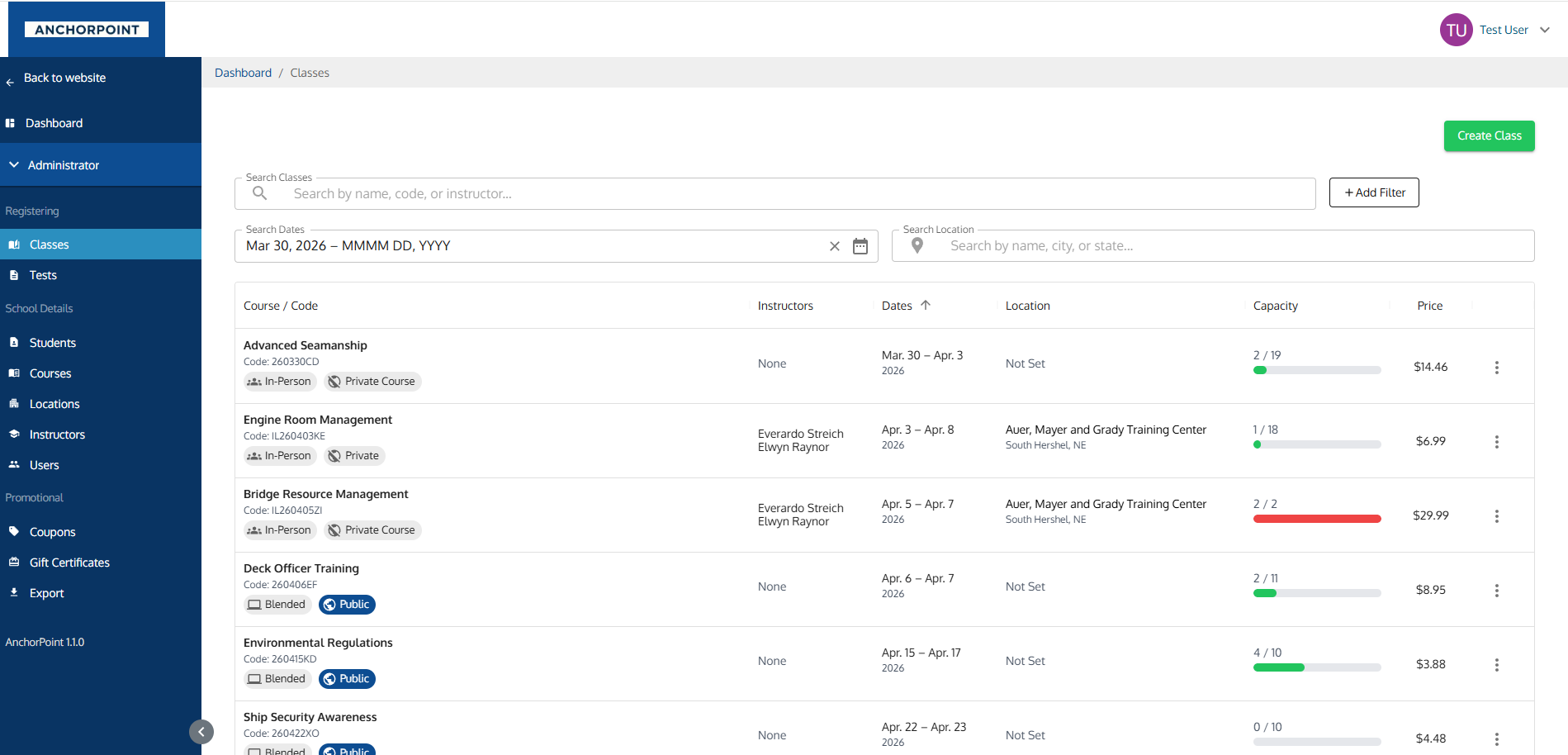
What Each Column Shows
| Column | What It Shows |
|---|---|
| Course / Code | The course name and class code. Cancelled classes are struck through. |
| Instructors | The assigned instructor(s), or "None" if no one is assigned yet |
| Dates | The start and end dates with the year underneath, or Self-paced for online courses |
| Location | The location name and city/state, Not Set if unassigned, or Online / Remote |
| Capacity | A bar showing seats taken out of the total. Unlimited with an infinity icon when there's no cap. |
| Price | The cost of the class |
| Actions | A menu button with additional options (see Actions & Menus) |
The list starts from today's date by default, so past classes are hidden until you widen the date filter.
Searching and Filtering
- Quick Search: Find classes by name, code, or instructor name.
- Course Type: Filter by Online, Virtual, or In-Person. You can select more than one.
- Search Dates: Filter by a start and end date range.
- Search Location: Find classes by location name, city, or state.
Your search, date, and location filters stay in the page address, so you can bookmark a filtered view or share it with a colleague.
Sorting
Click any sortable column header to sort. The default sort is by start date, earliest first.
Exporting
The Export button beside Create Class takes you to the Export center with the Classes data type already selected. See Exports.
Creating a Class
Click the Create Class button in the top-right corner.
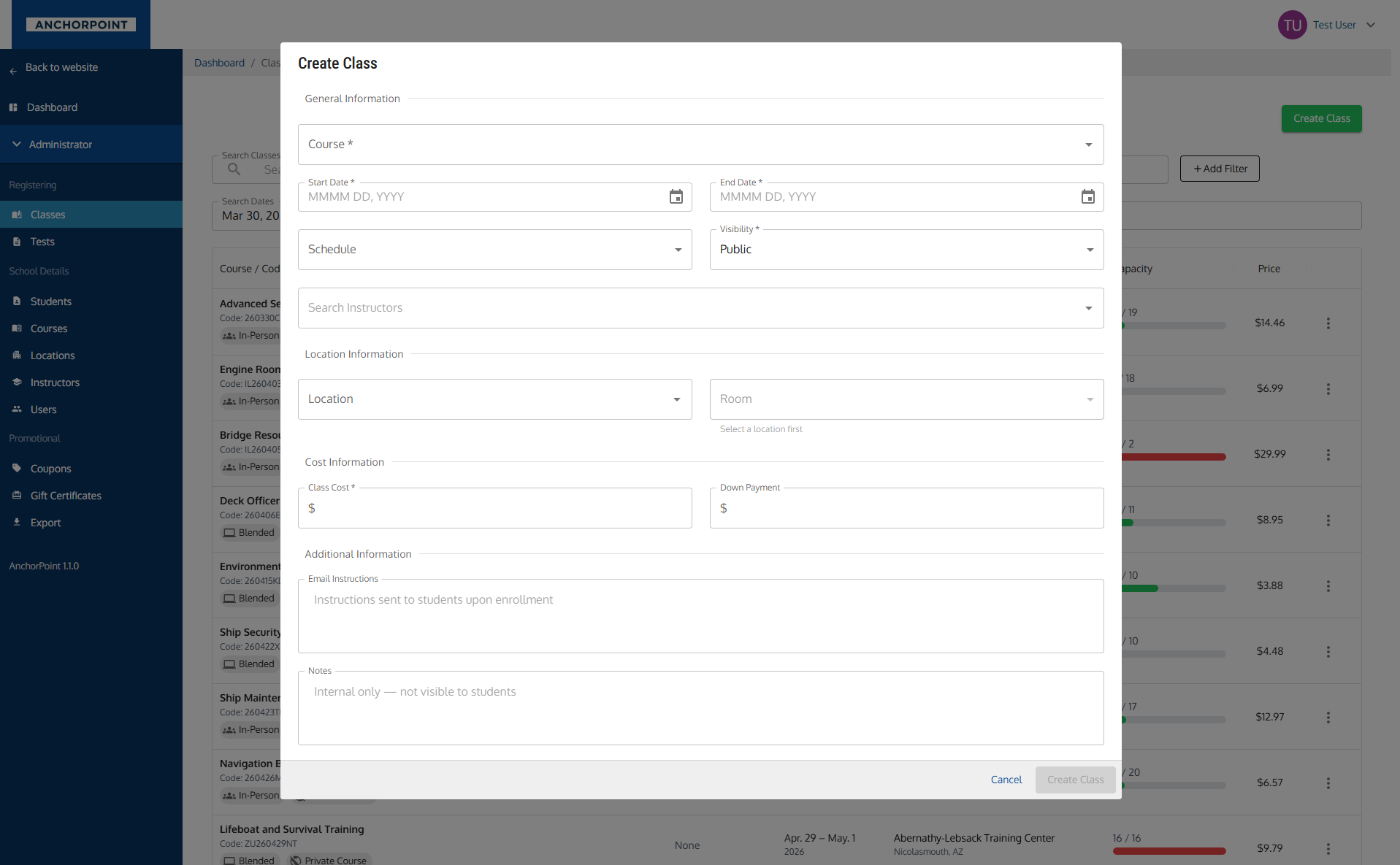
General Information
| Field | Required? | Notes |
|---|---|---|
| Course | Yes | Search and select a course. Only published In-Person and Virtual courses appear here. |
| Start Date | Yes | |
| End Date | Yes | Must be on or after the start date. |
| Visibility | Yes | Public classes appear on your registration page. Private classes are only visible to admins. |
| Instructors | No | Select one or more instructors to assign. |
| Schedule | No | Choose a preset, or select Custom to type your own. |
The schedule presets are:
- 8am - 5pm (5 Consecutive Days)
- An evening schedule spanning two weeks, with the test on the second Friday
- A day schedule running Monday through Sunday, with the test on Monday
- Custom — reveals a free-text field, e.g. "7:00 AM – 3:00 PM"
The schedule is shown to students in their automated emails, and publicly when the course and class are set to public. It's worth filling in.
Location Information
| Field | Required? | Notes |
|---|---|---|
| Location | No | Search and select a location. |
| Room | No | Choose a room at the selected location. Disabled until you pick a location. |
Cost Information
| Field | Required? | Notes |
|---|---|---|
| This class is free | No | Check this to run the class at no cost. Students can then enroll for free. |
| Class Cost | Conditional | Required unless the class is free. Must be greater than $0. |
| Down Payment | No | The amount required to reserve a seat. Must be less than the class cost. |
Additional Information
| Field | Required? | Notes |
|---|---|---|
| Email Instructions | No | Instructions sent to students when they enroll. |
| Notes | No | Internal only — not visible to students. |
After creating a class you're taken straight to its detail page.
Viewing a Class
Click any class row to open its detail page. Everything about the class lives on this single scrolling page — there are no tabs.
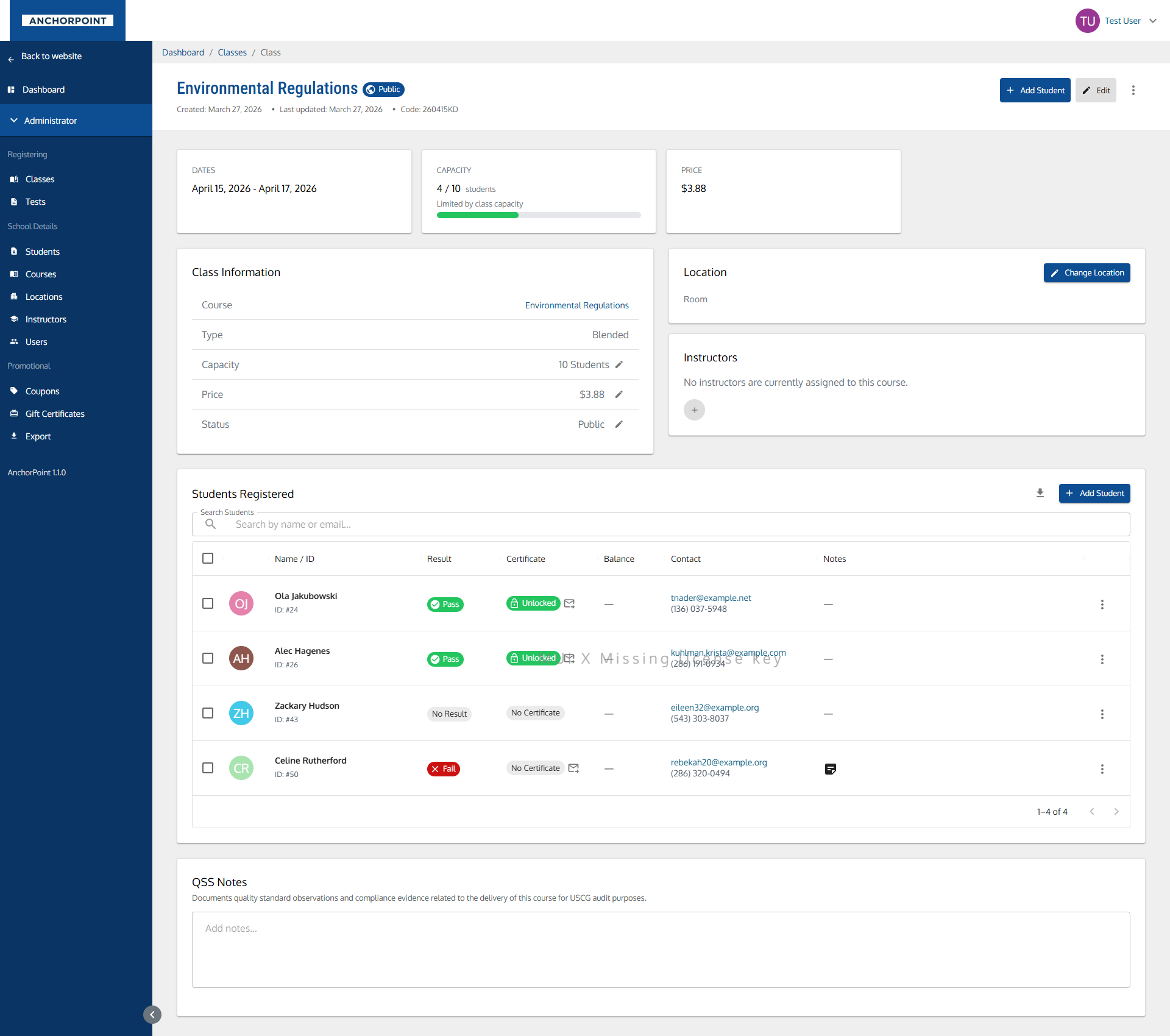
Header
The course name sits at the top with one status chip beside it:
| Chip | What It Means |
|---|---|
| Cancelled | The class has been cancelled |
| Public | Visible on your public registration page |
| Private | Admin-only |
| Private Course | The course itself is private, so the class inherits that |
Below it you'll see when the class was created, when it was last updated and by whom, and the class code.
Action buttons:
- Add Student — enrolls a student in this class
- Edit — opens the Manage Class form
- More menu — Email Students, Reminder Settings, Cancel Class, Reinstate Class, Delete Class
Notices
- Certificate Template Missing: appears when the course has no certificate template. Certificates can't be issued until one is added to the course.
- Cancelled Class Notice: appears when a cancelled class still has active registrations and hasn't ended yet — a prompt to transfer or cancel each student individually.
Class Details Summary
A quick-glance strip showing Dates, Instructors, Capacity, and Price. The capacity tile also tells you whether the limit comes from the class or from the room.
Class Information Card
| Row | Notes |
|---|---|
| Course | Links through to the course |
| Type | In-Person, Virtual, or Online |
| Capacity | The seat limit, or Unlimited. The pencil opens the Manage Class form. |
| Price | Editable inline — click the pencil, change it, and it saves |
| Status | Switch between Public and Private inline. Hidden when the course itself is private. |
| Reminders | A summary such as "1 week before / 2 days before · Email, Text", or Off. The pencil opens Reminder Settings. |
Location Card
Shows the location name (linking to the location), the room, and the address — or "No location set for this class."
- Change Location opens a drawer to move the class to a different location or room.
- View History appears once a class has been moved, showing every location it's been assigned to.
Instructors Card
The assigned instructors as avatars. Click them to open the Change Instructor(s) drawer. When nobody is assigned you'll see "No instructors are currently assigned to this course."
Reminders Card
Shows the delivery state of each configured reminder. See Class Reminders below.
Students Registered
The class roster. See Managing the Roster below.
Schedule
Pick a preset from the dropdown, or choose Custom to type your own. This is what students see in their automated emails.
QSS Notes
An internal notes field that saves as you type, for quality standard observations and compliance evidence relating to how this class was delivered — the record you'll want at USCG audit time.
Class Reminders
AnchorPoint can send students up to two automatic reminders before a class starts. Open Reminder Settings from the class header menu, or click the pencil on the Reminders row of the Class Information card.
Reminder Settings
| Setting | Options |
|---|---|
| First reminder | On or off, sent 2 weeks, 1 week, 5 days, or 3 days before the class |
| Second reminder | On or off, sent 3 days, 2 days, or 1 day before the class |
| Channels | Email, Text, or both — set separately for each reminder |
| Defer link | Adds a secure link letting a student request a deferral straight from the reminder |
If the first reminder is set to "3 days before", that option is unavailable on the second reminder — two reminders can't land on the same day.
Turning on the Defer link means students who can't attend can say so themselves. Their requests land in Deferrals rather than arriving as phone calls the week of the class.
Reminders are informational only — no promotional content — so they send under each student's existing registration consent.
Reminder Status
Once reminders are configured, the Reminders card shows a sub-card for each one:
| What You'll See | What It Means |
|---|---|
| Sent Mar 14 with a count | Already delivered, with how many sent and how many failed |
| Scheduled for Mar 14 | Queued and waiting for the send date |
| Not scheduled | Enabled but no send date could be calculated |
The Reminders column on the roster shows per-student delivery status, so you can spot the individuals whose email or phone number bounced.
The Reminders card is hidden when both reminders are off, or when the class is cancelled. Reminder Settings is only available on classes that aren't cancelled, aren't online, and haven't started yet.
Managing a Class
Click Edit in the class header, or Manage Class from a row menu.
General Information
| Field | Notes |
|---|---|
| Course | Change the associated course. Hidden for online classes. |
| Start Date / End Date | Update the schedule. Hidden for online classes. |
| This class is free | Make the class free, or set a price on a free class. |
| Cost | Update the class price. |
| Down Payment | The amount required for a student to register. Must be less than the cost. |
| Visibility | Switch between Public and Private. Locked when the course itself is Private. |
Capacity
For classes that aren't online, choose how the seat limit is set:
- Use room capacity — the class capacity matches the assigned room. Only offered when the class has a location.
- Use class capacity — set a number for this class specifically.
A class capacity can't exceed the room's capacity. If you set a capacity lower than the number of students already registered, you'll see a warning before saving.
Additional Info
| Field | Notes |
|---|---|
| Notes | Internal notes about the class. |
| Email Body | Email content sent to students. |
Managing the Roster
The Students Registered card lists everyone enrolled. Clicking a row opens the registration drawer, where the real work happens — see Registrations for the full detail.
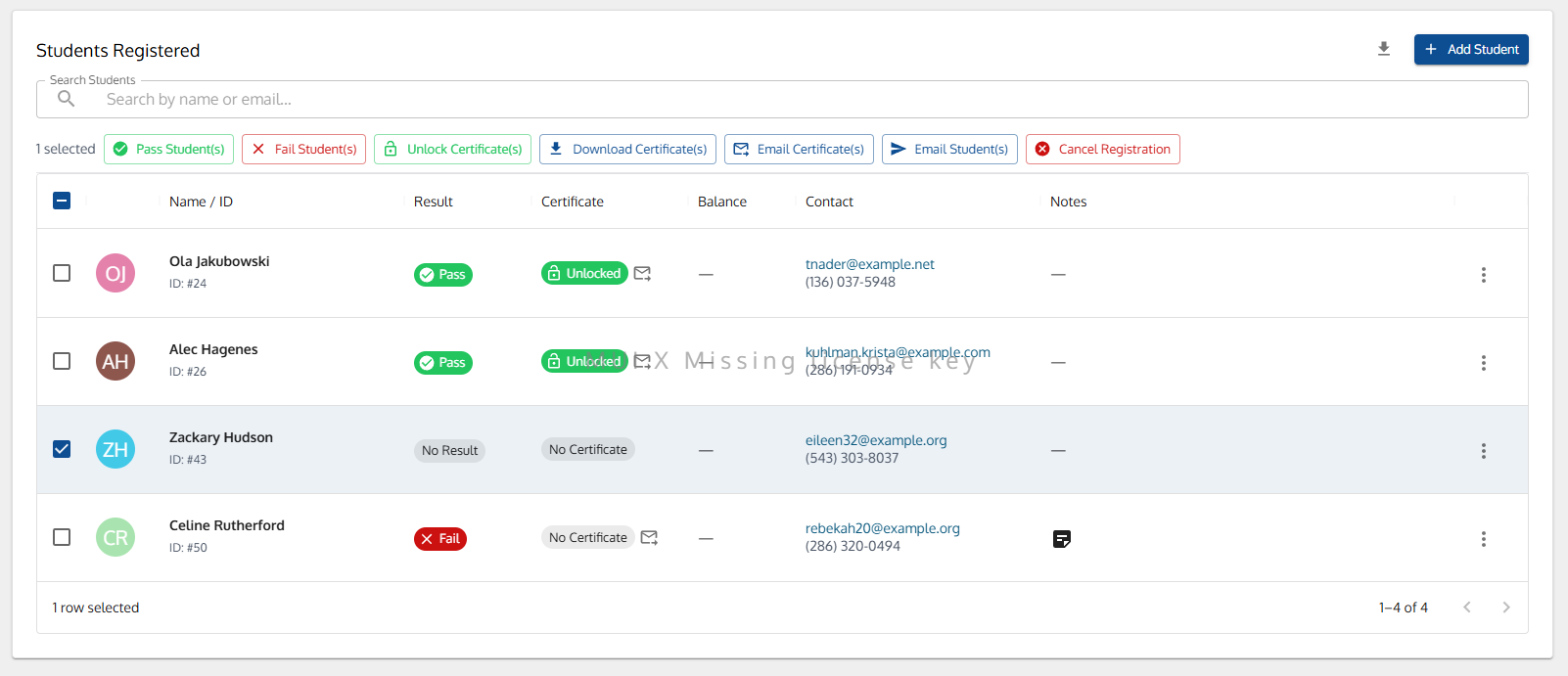
Roster Columns
| Column | What It Shows |
|---|---|
| Avatar | Student's initials |
| Name / ID | Full name and student ID. Struck through when cancelled or deferred. |
| Result | Pass, Fail, Cancelled, Deferred, or No Result |
| Certificate | Locked, Unlocked, or No Certificate, plus an icon showing the mailed date |
| Retake | "Yes" when the student is repeating the course |
| Balance | What they still owe. Credits show with a plus sign. |
| Contact | Email address and cell phone, or No phone |
| Reminders | Whether each reminder reached this student |
| Notes | An icon when registration notes exist |
| Actions | A menu button with additional options |
Filtering the Roster
- Search Students: find someone by name or email.
- Status: show All, Active, Deferred, or Cancelled registrations.
Row Actions
| Action | What It Does |
|---|---|
| View Student | Opens the student's profile in a new tab |
| Pass Student | Marks the student as passed and handles their certificate |
| Fail Student | Marks the student as failed |
| More Options | Opens the registration drawer with its full action menu expanded |
A student who registered but didn't attend can be marked as a no-show from the registration drawer. A No Show chip then appears in the class and student class tables. It can still be corrected after the registration is cancelled.
No-show and fail are different: a no-show never turned up, a fail attended and didn't pass. Marking someone a no-show clears any result, test record and certificate-mailed date they had.
Bulk Actions
Tick the checkboxes beside students and a toolbar appears showing how many you've selected.
| Action | What It Does |
|---|---|
| Pass Student(s) | Marks the selection as passed, with certificate options |
| Fail Student(s) | Marks the selection as failed |
| Unlock Certificate(s) | Releases certificates so students can download them |
| Lock Certificate(s) | Withdraws student access to certificates |
| Download Certificate(s) | Downloads the certificates to your computer |
| Email Certificate(s) | Emails each student their certificate |
| Regenerate Certificate(s) | Issues new versions, with a required reason |
| Email Student(s) | Opens your email app addressed to the selection |
| Resend Enrollment Emails | Resends the enrollment confirmation |
| Resend Payment Statement Email(s) | Resends payment statements |
| Defer Registration | Available for one active student at a time |
| Cancel Registration | Available for one student at a time, within 60 days of the class end |
Use the download icon on the card header to get a CSV roster at any time.
Online and Virtual Classes
An online class opens a page tailored to it, rather than the in-person class view. Dates, location, room and capacity are all absent, because none of them apply.
What's On the Page
| Card | What It Shows |
|---|---|
| Class Information | Course, code and price |
| LMS Connector | Where the online coursework connection will appear. Until connectors are set up it reads "LMS connector(s) need to be configured under organization settings". |
| Registrations | The enrolled students |
The Registrations Table
Shorter than an in-person roster:
| Column | What It Shows |
|---|---|
| Name / ID | Full name and student ID |
| Result | Pass, Fail, or No Result |
| Certificate | Locked, Unlocked, or No Certificate |
| Enrolled On | When they registered |
| Balance | What they still owe |
| Actions | View Student, Pass Student, Fail Student, More Options |
Retakes
Once a student's registration has concluded — passed or failed — they can be registered for the same online class again.
No-show doesn't apply to online registrations. There's no session to miss.
Getting There From a Course
Online courses have a View Class card and menu option in the course drawer, linking straight to the class page.
Cancelling and Deleting a Class
Cancel Class
Cancelling marks the class as cancelled and notifies enrolled students.
Heads up: cancelling the class doesn't resolve anyone's registration. You still need to transfer, or cancel and refund, each student individually.
The confirmation buttons are Keep Class and Cancel Class. A cancelled class can be reinstated from the header menu, up to seven days after its end date.
Delete Class
Deleting removes the class permanently and cannot be undone. It's only available on classes with no registrations at all.
Actions & Menus
From the Classes List
The three-dot menu on each row offers:
| Action | What It Does |
|---|---|
| Manage Class | Opens the class detail page with the edit form open |
| Download Roster | Downloads a spreadsheet of all enrolled students |
| Email Students | Opens your email app with all student emails pre-filled |
| Cancel Class | Cancels the class (see conditions below) |
| Delete Class | Permanently removes the class (see conditions below) |
From the Class Detail Page
The header menu offers:
| Action | What It Does |
|---|---|
| Email Students | Opens your email app addressed to the whole roster |
| Reminder Settings | Configures the automatic class reminders |
| Cancel Class | Cancels the class |
| Reinstate Class | Reverses a cancellation. Only on cancelled classes, within 7 days of the end date. |
| Delete Class | Permanently removes the class |
When Things Are Disabled
| What's Disabled | Why |
|---|---|
| Add Student button | The class is cancelled, or every seat is taken. Hover the button to see which. |
| Cancel Class option | Only for non-online classes that haven't started yet and aren't already cancelled. |
| Delete Class option | Only when the class has zero registrations and isn't online. |
| Reinstate Class option | Only on cancelled classes, and only up to seven days after the end date. |
| Reminder Settings | Only on non-online classes that haven't started and aren't cancelled. |
| Reminders card | Hidden when both reminders are off, or the class is cancelled. |
| Room dropdown | Select a location first. |
| Visibility dropdown | Locked when the course is set to Private — the class inherits it. |
| Status row in Class Information | The inline edit is hidden when the course is private. |
| Change Location button | Disabled on cancelled classes. |
| Class capacity above room capacity | A class can't hold more students than its room. |
| Courses missing from the Create form | Only published In-Person and Virtual courses can have classes scheduled. Draft and online courses won't appear. |
Icons on This Page
| Mark | Meaning |
|---|---|
| In-Person / Online / Virtual / Zoom chips | How the class is delivered |
| Public / Private chips | Whether students can find and register for it themselves |
| Cancelled chip, struck-through name | The class was cancelled |
| Capacity bar — green / yellow / red | Under 70% full, 70–99%, full |
| Infinity symbol in Capacity | No seat limit |
| Pass / Fail / No Result / No Show chips | The student's result |
| Locked / Unlocked certificate chips | Whether the student can download it |
| Email and text icons, coloured | Reminder delivery health. Hover for the exact status. |
| Amber warning triangle | The student has overpaid |
| Struck-through name on the roster | The registration is cancelled or deferred |
→ Full list: Icons & Statuses
Key Relationships
- Course: Every class is based on a course. The course determines the type, whether the class can be public, and whether a certificate template is available.
- Location & Room: A class can be assigned to a location and room. The room's capacity can set the class capacity.
- Instructors: One or more instructors can be assigned. They see the class in their own portal.
- Registrations: Students are enrolled through registrations, each tracking result, certificate, and balance. See Registrations.
- Deferrals: Students who can't attend can be deferred to a future class, keeping their payments as credit. See Deferrals.
Tips & Notes
- Set up your course, location, and instructors first. A class needs a published course before it can exist, and a room before the capacity means anything.
- Turn reminders on when you create the class. They cut no-shows, and pairing them with the defer link means students who can't make it tell you in advance instead of not turning up.
- Watch the capacity bar on the list page. It's the quickest read on which classes need promoting and which are about to overfill.
- Use bulk actions at the end of a class. Select the whole roster, pass everyone, and unlock and email their certificates in a single pass.
- Private classes won't appear on your public registration page. Use them for company-booked or invite-only sessions.
- Cancelling the class isn't the same as cancelling registrations. Each student still needs transferring or cancelling individually — the notice on the class page reminds you.
- Fill in the Schedule. It's what students see in their confirmation and reminder emails, and "8am - 5pm (5 Consecutive Days)" answers most of the questions you'd otherwise field by phone.
- QSS Notes save as you type. Record observations while the class is running rather than reconstructing them at audit time.