Courses
The Courses section is where you set up the training programs your institution offers. A course is the blueprint for a class — it defines the type of training, USCG approval details, and certificate templates. Once a course is created, you can schedule one or more classes based on it.
Navigating the Courses List
When you open Admin > Courses, you'll see a table of all your courses.
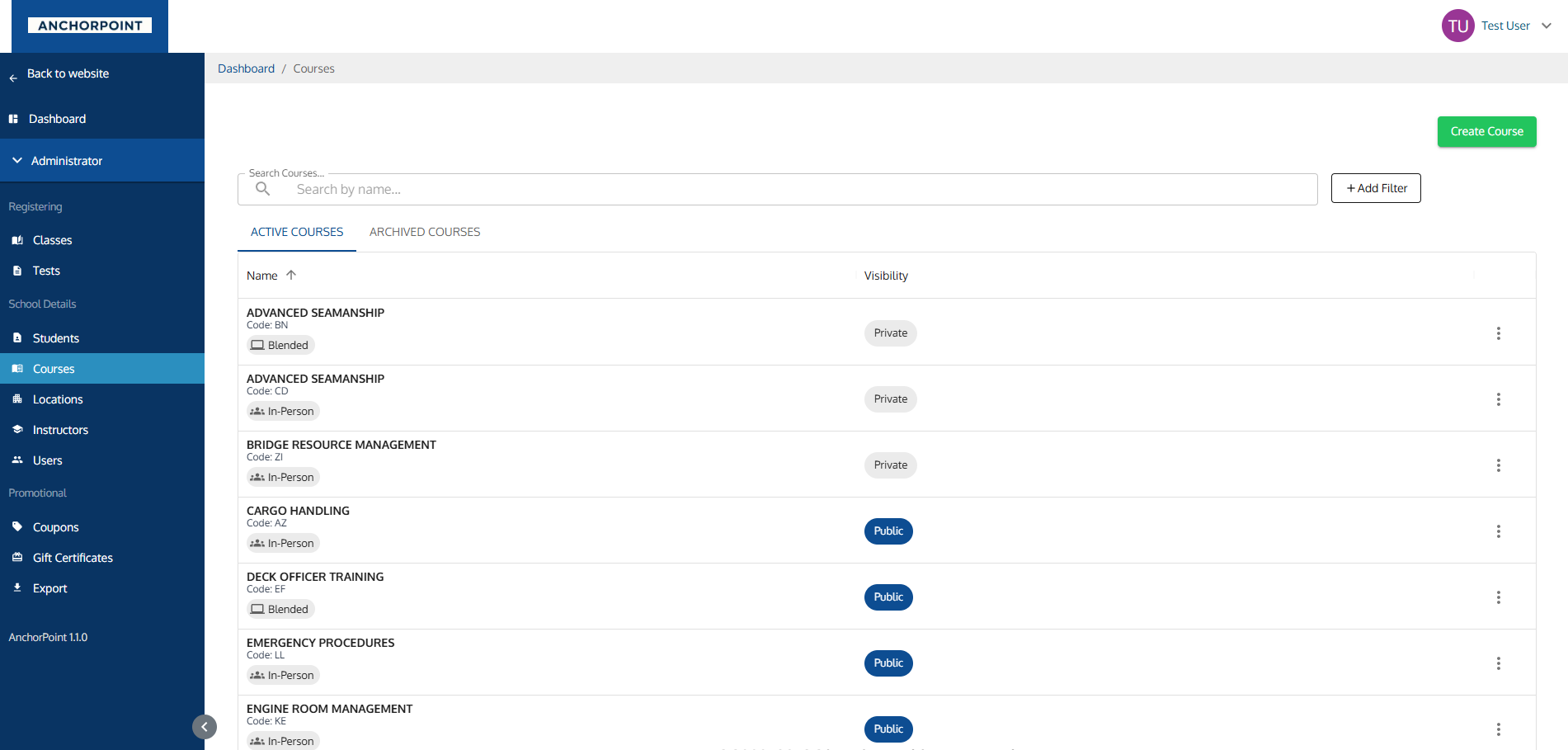
What Each Column Shows
| Column | What It Shows |
|---|---|
| Name | The course name (uppercase), course code, and a type chip (In-Person, Virtual / Zoom) |
| Visibility | A chip showing Public (blue), Private, or Archived (red) Public courses appear on your registration page. Private courses are only visible to admins. |
| Actions | A menu button with additional options |
Searching and Filtering
- Quick Search: Type in the search bar to find courses by name.
- Type Filter: Filter by course type — Online, In-Person (Brick and Mortar), or Blended. Blended is the same thing the rest of the application calls Virtual — see the Glossary.
- Archive Tabs: Switch between Active Courses and Archived Courses using the tabs above the table.
Sorting
Click the Name column header to sort alphabetically. The default sort is by name (A-Z).
Creating a Course
Click the Create Course button in the top-right corner to open the creation form.
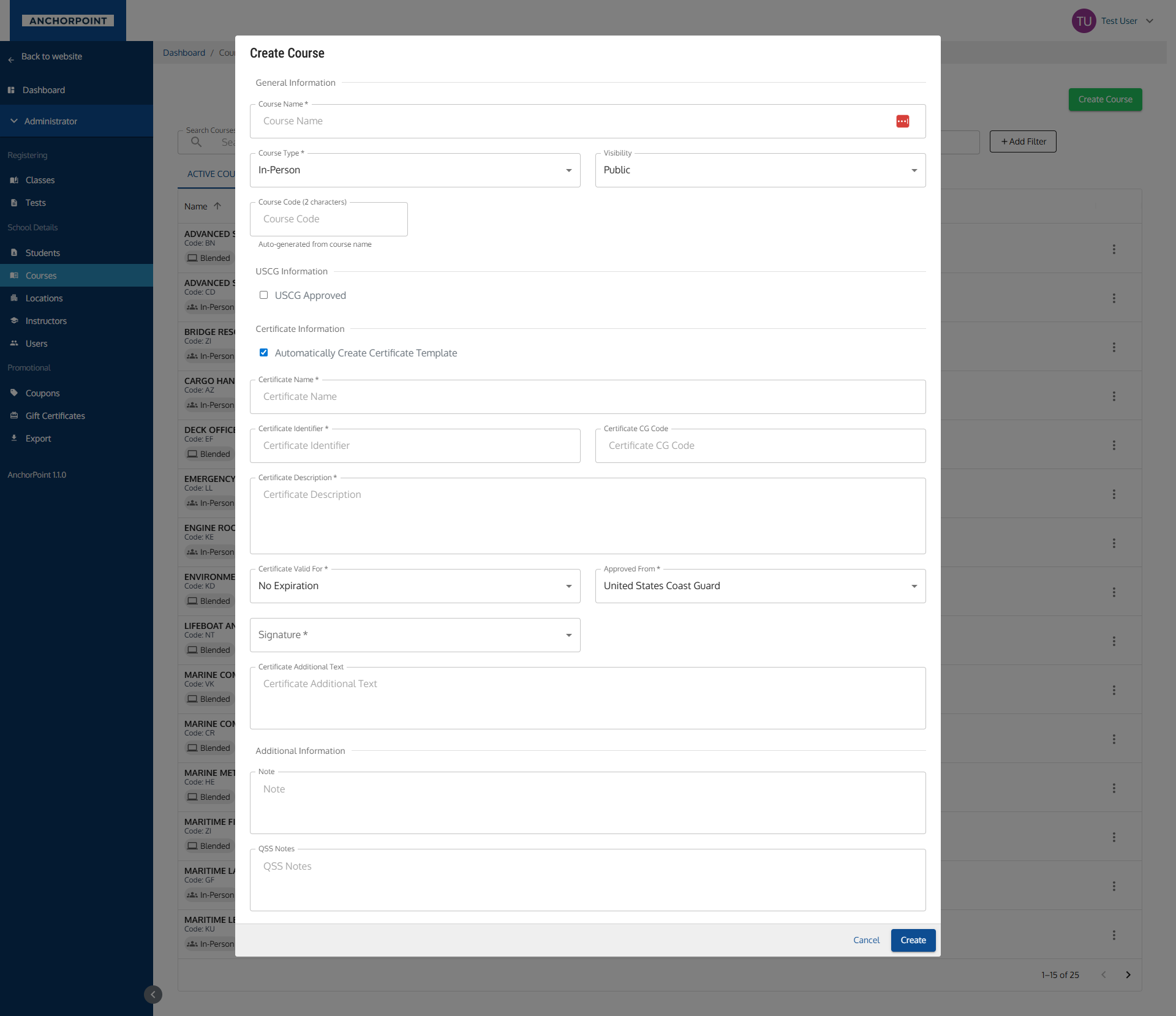
General Information
| Field | Required? | Notes |
|---|---|---|
| Course Name | Yes | The full name of the course. |
| Course Type | Yes | Choose In-Person or Virtual. |
| Visibility | No | Public (visible on registration page) or Private (admin-only). |
| Course Code | No | A short code (up to 2 characters). Auto-generated from the first letters of the course name, but you can change it. |
USCG Information
This section is for United States Coast Guard approval details.
| Field | Required? | Notes |
|---|---|---|
| USCG Approved | No | Check this box if the course is USCG approved. Checking it reveals the fields below. |
| USCG Approved Date | Yes (if approved) | The date USCG approval was granted. |
| USCG Expiration Date | Yes (if approved) | When the approval expires. |
| USCG Code | No | The USCG-assigned code for this course. |
The date fields and code field only appear when the "USCG Approved" checkbox is checked.
Certificate Information
When creating a course, you can set up a certificate template at the same time.
| Field | Required? | Notes |
|---|---|---|
| Automatically Create Certificate Template | No | Checked by default. Uncheck if you don't need a certificate for this course. |
| Certificate Name | Yes (if creating) | The name that appears on the certificate. |
| Certificate Identifier | Yes (if creating) | A unique identifier for the certificate. |
| Certificate CG Code | No | Coast Guard code for the certificate. |
| Certificate Description | Yes (if creating) | Description text that appears on the certificate. |
| Certificate Valid For | Yes (if creating) | How long the certificate is valid: No Expiration, 1 Year, 2 Years, 3 Years, or 5 Years. |
| Approved From | Yes (if creating) | The approving body: United States Coast Guard, Federal Maritime Commission, or Interlake Maritime Services. |
| Signature | Yes (if creating) | Select the signature that will appear on the certificate. |
| Certificate Additional Text | No | Extra text to include on the certificate. |
All certificate fields only appear when "Automatically Create Certificate Template" is checked.
Additional Information
| Field | Required? | Notes |
|---|---|---|
| Note | No | Internal notes about the course. |
| QSS Notes | No | Internal administrative notes. |
Viewing a Course
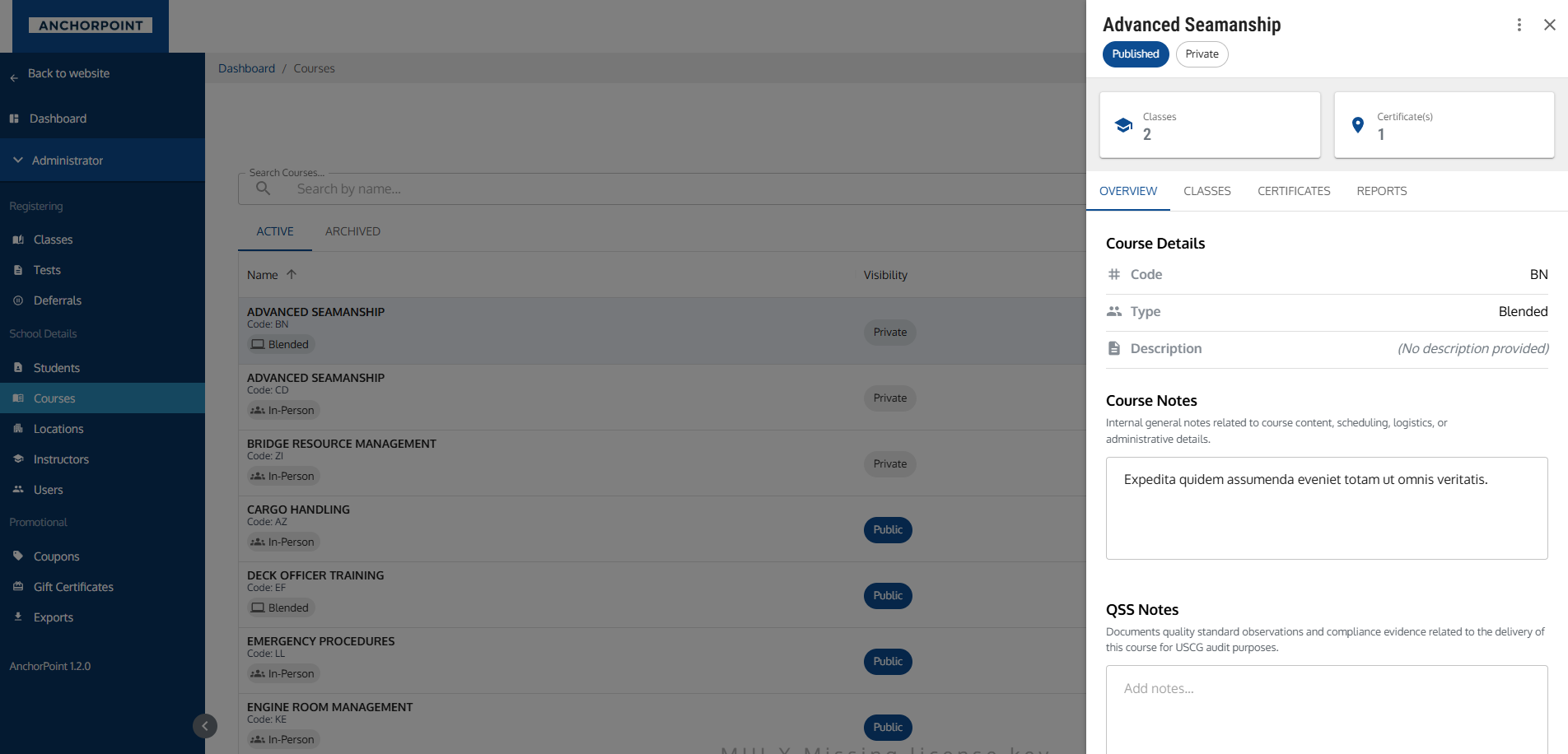
Click on any course row to open the course details drawer on the right side of the screen.
Quick Stats Bar
At the top of the drawer, you'll see two stats showing totals:
- Classes — Number of classes scheduled for this course
- Certificate(s) — Number of certificate templates
Click any stat to jump to the related tab.
Overview Tab
- Course Details: Code, type, and description
- USCG Details: Approval status, dates, and code (only shown if the course is USCG approved)
- Course Notes: Editable notes field (auto-saves)
- QSS Notes: Internal notes field (auto-saves)
Classes Tab
Shows upcoming classes scheduled for this course. Each class card displays:
- Location name
- Start and end dates
- Capacity bar (seats taken vs. total)
- Class code
Click on a class to go to its detail page. If there are more than 5 upcoming classes, a "View All Classes" button appears.
If no classes are scheduled, you'll see a "No upcoming classes scheduled" message.
Certificates Tab
Shows all certificate templates associated with this course. Each template displays:
- Certificate identifier
- Expiration period
Actions per template:
- Edit — Modify the certificate template
- Delete — Remove the template
Click Add Template to create a new certificate template for this course.
If no certificate templates exist, you'll see a notice prompting you to create one.
Reports Tab
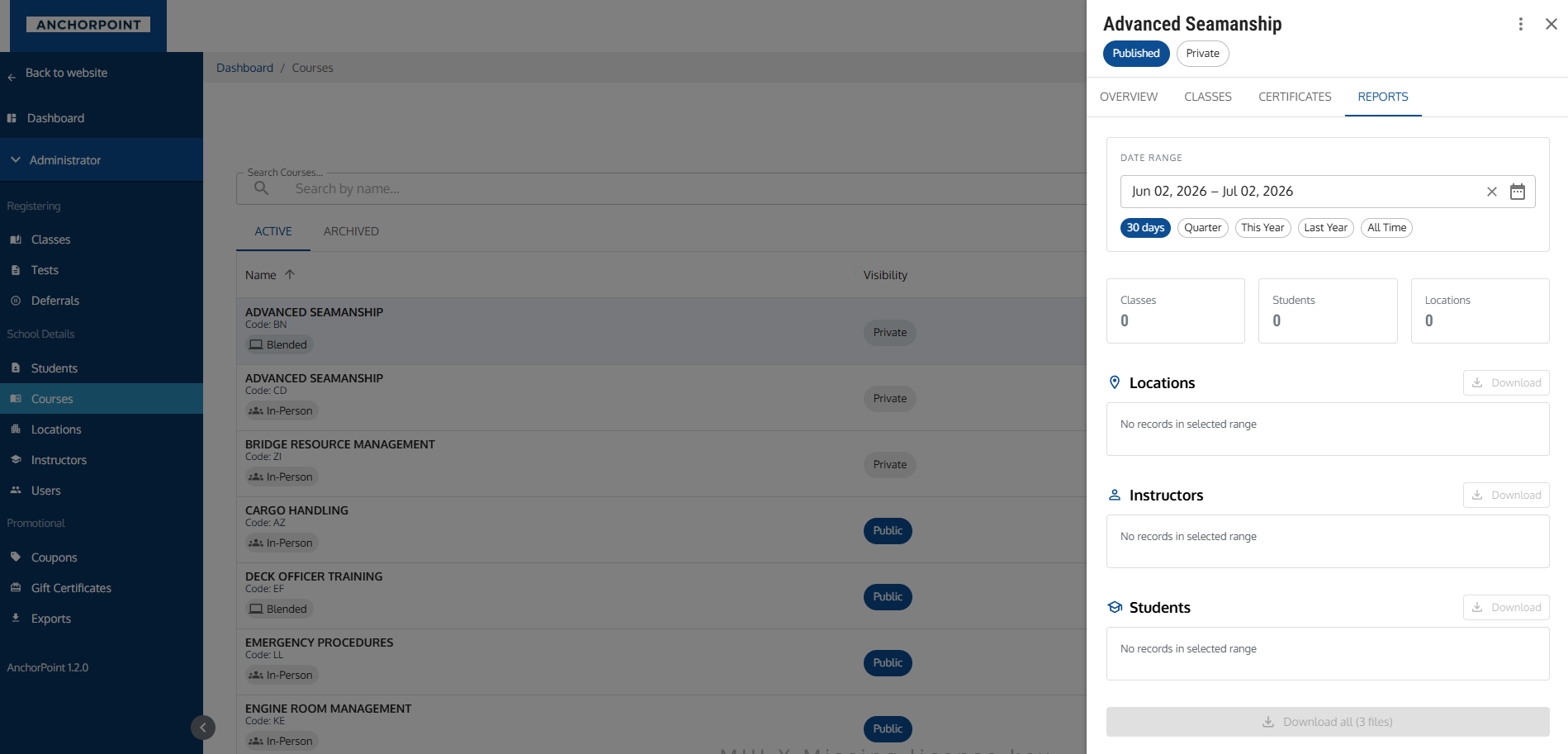
Shows all reports associated with this course.
- Date Range — Can be filtered by 30 days, Quarter, This Year, Last Year, or All Time
- Number of Locations — Information can be downloaded
- Number of Instructors — Information can be downloaded
- Number of Students — Information can be downloaded
- Download all button — Will download all associated files for the course
Managing a Course
To edit a course, click Manage Course from the actions menu (either on the table row or in the drawer header).
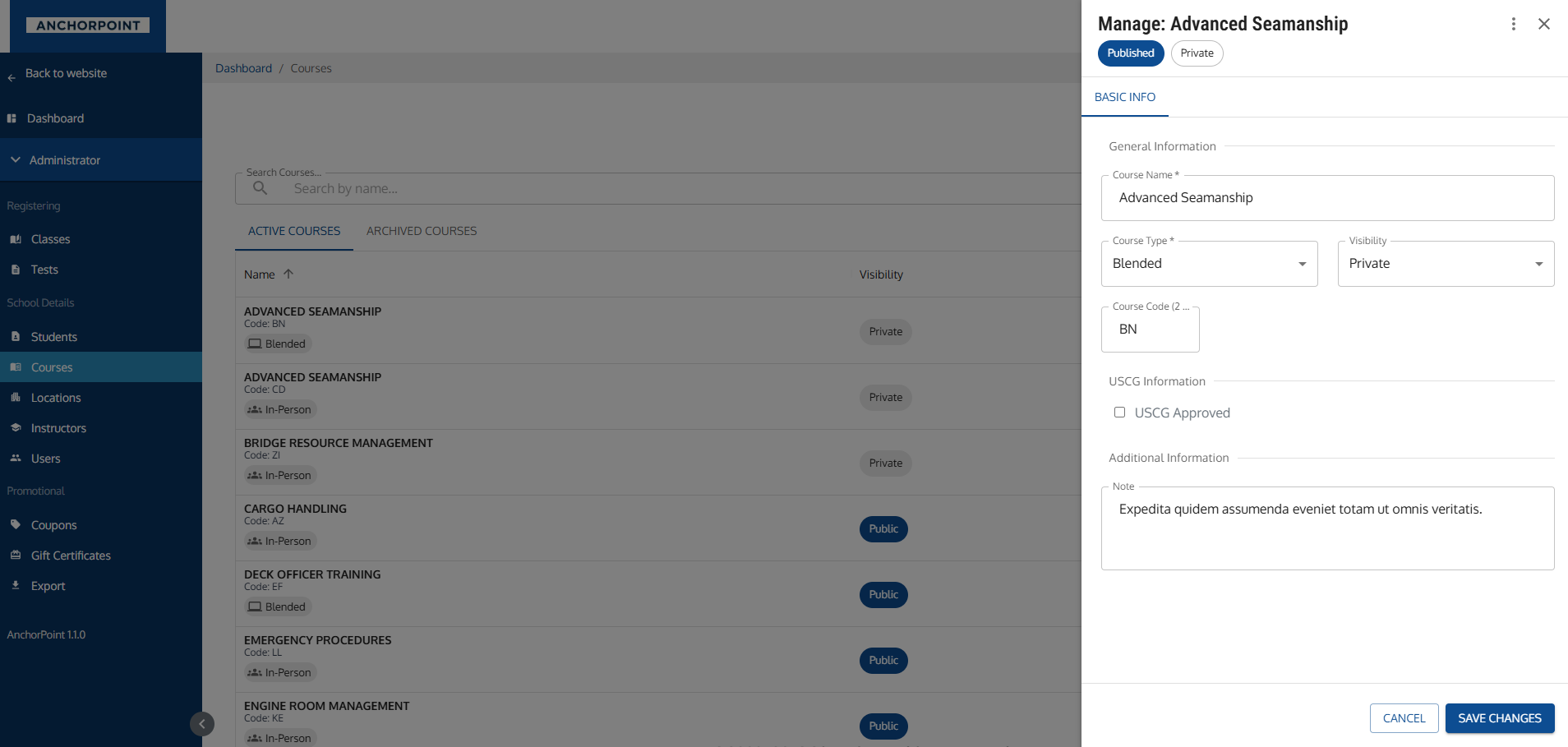
The manage view opens a single "Basic Info" tab with an editable form:
| Field | Required? | Notes |
|---|---|---|
| Course Name | Yes | |
| Course Type | Yes | In-Person or Virtual. |
| Visibility | No | Public or Private. |
| Course Code | No | Up to 2 characters. |
| USCG Approved | No | Toggle with conditional date fields. |
| Note | No |
Only the fields you change are saved — unchanged fields are left as-is.
If you have unsaved changes and try to close the drawer (or press Escape), you'll be asked to confirm whether you want to discard your changes.
Actions & Menus
From the Courses List
The three-dot menu on each row offers:
| Action | What It Does |
|---|---|
| Manage Course | Opens the drawer in edit mode |
| Archive Course / Unarchive Course | Moves the course to the archived or active list |
| Make Public / Make Private | Changes the course's visibility (only available for active/published courses) |
From the Course Drawer
The three-dot menu in the drawer header offers the same actions as the table row menu.
When Things Are Disabled
Here's why certain options or fields may be unavailable:
| What's Disabled | Why |
|---|---|
| Make Public / Make Private option | This option only appears for published (active) courses. If a course is archived, you cannot change its visibility — unarchive it first. |
| Archive / Unarchive button | Temporarily disabled while the action is processing. Wait a moment and it will become available again. |
| USCG date and code fields | Only visible when the "USCG Approved" checkbox is checked. Uncheck it to hide them. |
| Certificate template fields | Only visible when "Automatically Create Certificate Template" is checked on the create form. |
| Submit button | Disabled while the form is being submitted. |
Key Relationships
- Classes: A course can have many classes. Each class is a scheduled instance of the course at a specific time and location.
- Certificate Templates: A course can have multiple certificate templates. These templates are used to generate certificates for students who pass a class.
- Visibility: A course's visibility affects its classes. If a course is Private, all of its classes will also be Private (and the class visibility setting will be locked).
Tips & Notes
- Create your courses before scheduling classes. Classes are always based on an existing course, so you need the course set up first.
- Set up certificate templates when creating the course to save time later. If you skip this step, you'll see a reminder on the class detail page.
- Use Archive instead of deleting courses you no longer offer. Archived courses keep their history intact and can be unarchived if needed.
- The course code auto-generates from the course name but can be customized. It appears on class listings and certificates, so keep it short and recognizable.
- USCG information is important for compliance tracking. Make sure to update expiration dates before they lapse.
- Quick Stats in the drawer give you a bird's-eye view of how much activity a course has — how many classes are scheduled for it and how many certificate templates it has.