Users
The Users section is where you manage the people who have access to the system. This includes administrators, instructors, and students. From here you can create new user accounts, update contact information, reset passwords, manage roles, and send verification emails.
Navigating the Users List
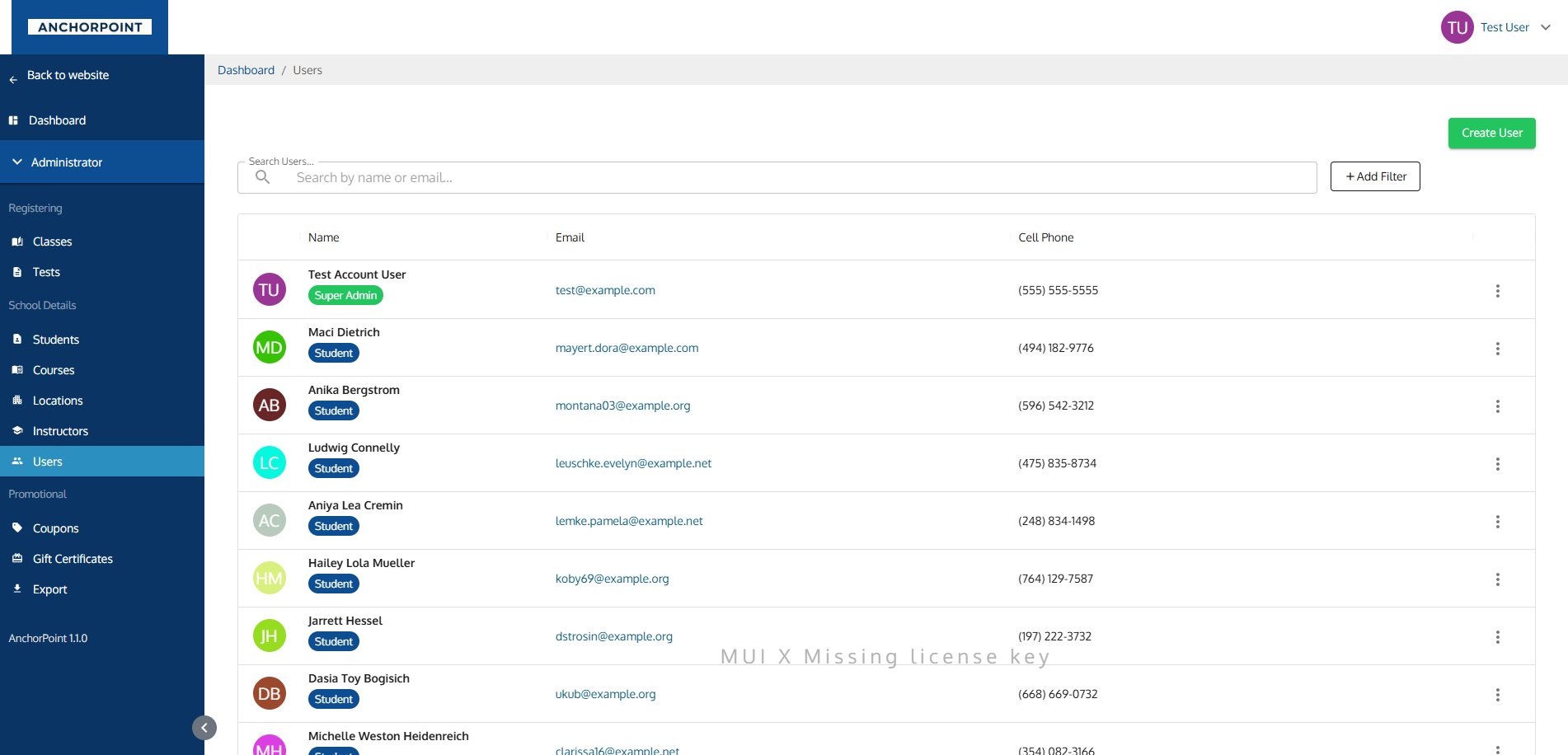
When you open Admin > Users, you'll see a table of all users in the system.
What Each Column Shows
| Column | What It Shows |
|---|---|
| Avatar | A circular icon with the user's initials |
| Name | The user's full name, colored role chips (e.g., Super Admin, Admin, Instructor, Student), and an "Unverified" chip if they haven't verified their email |
| Clickable email address | |
| Cell Phone | Cell phone number, or "None" if not on file |
| Actions | A menu button with additional options |
Searching and Filtering
- Quick Search: Type in the search bar to find users by name or email.
- Role Filter: Filter users by role — Super Admin, Admin, Instructor, or Student. You can select multiple roles at once.
Active filters appear as chips below the search bar. Click the "X" on a chip to remove that filter.
Sorting
Click the Email, Cell Phone, or Name column headers to sort. The default sort order shows all users.
Creating a User
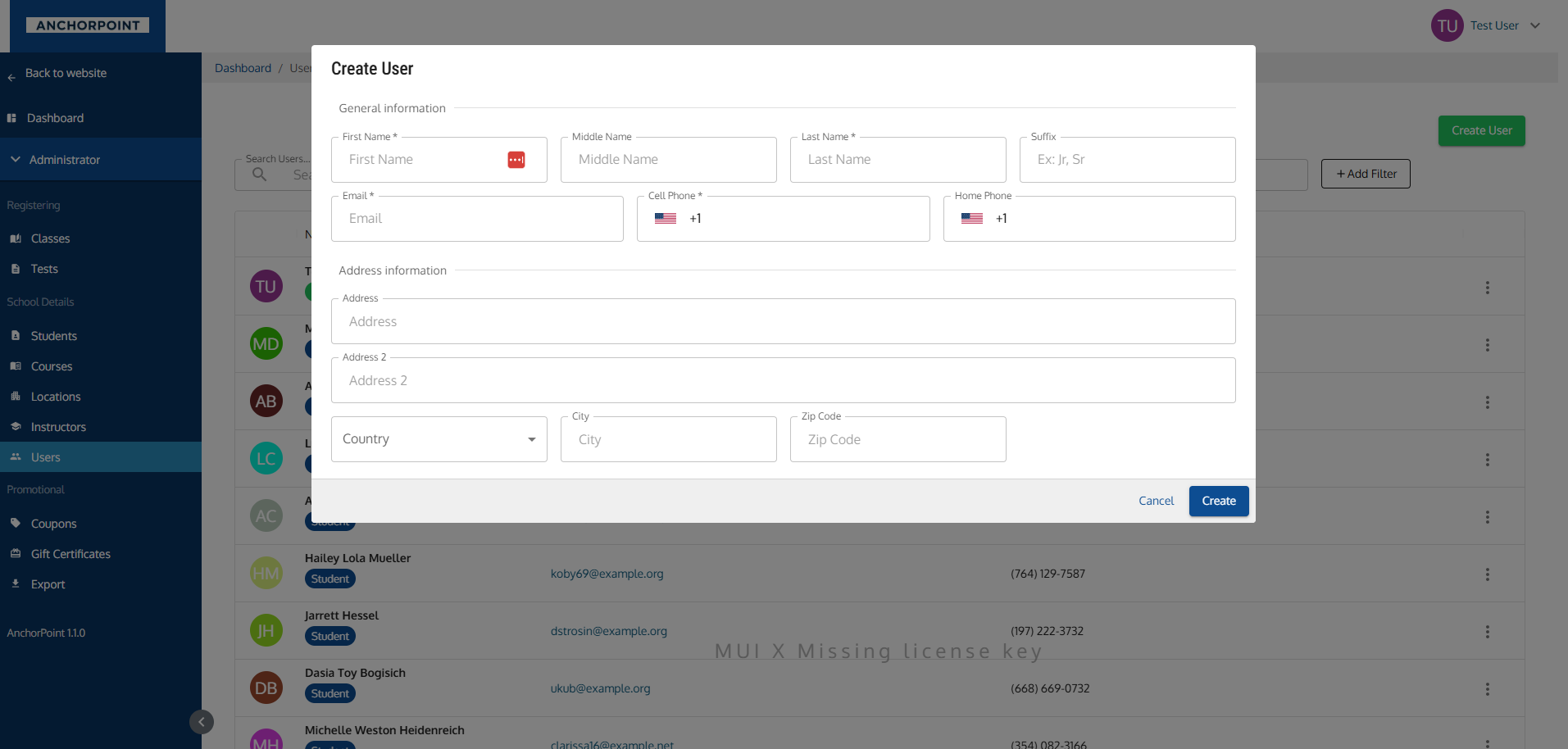
Click the Create User button in the top-right corner to open the creation form.
General Information
| Field | Required? | Notes |
|---|---|---|
| First Name | Yes | |
| Middle Name | No | |
| Last Name | Yes | |
| Suffix | No | e.g., Jr., Sr., III |
| Yes | Must be a valid email address. The system checks if the email is already in use — if so, you'll see an error. | |
| Cell Phone | Yes | Formatted phone input. |
| Home Phone | No |
Address Information
| Field | Required? | Notes |
|---|---|---|
| Address | No | |
| Address 2 | No | |
| Country | No | Defaults to "United States of America". |
| City | No | |
| State | Conditional | Only appears when the selected country has states or provinces. Required if shown. |
| Zip Code | No | |
| Secondary Email | No | An alternate email address. |
Updating a User
Select Update User from the actions menu on any row. The update form contains the same fields as the create form, pre-filled with the user's current information.
The email field checks for duplicates only if you change it from the original value.
Updating a Password
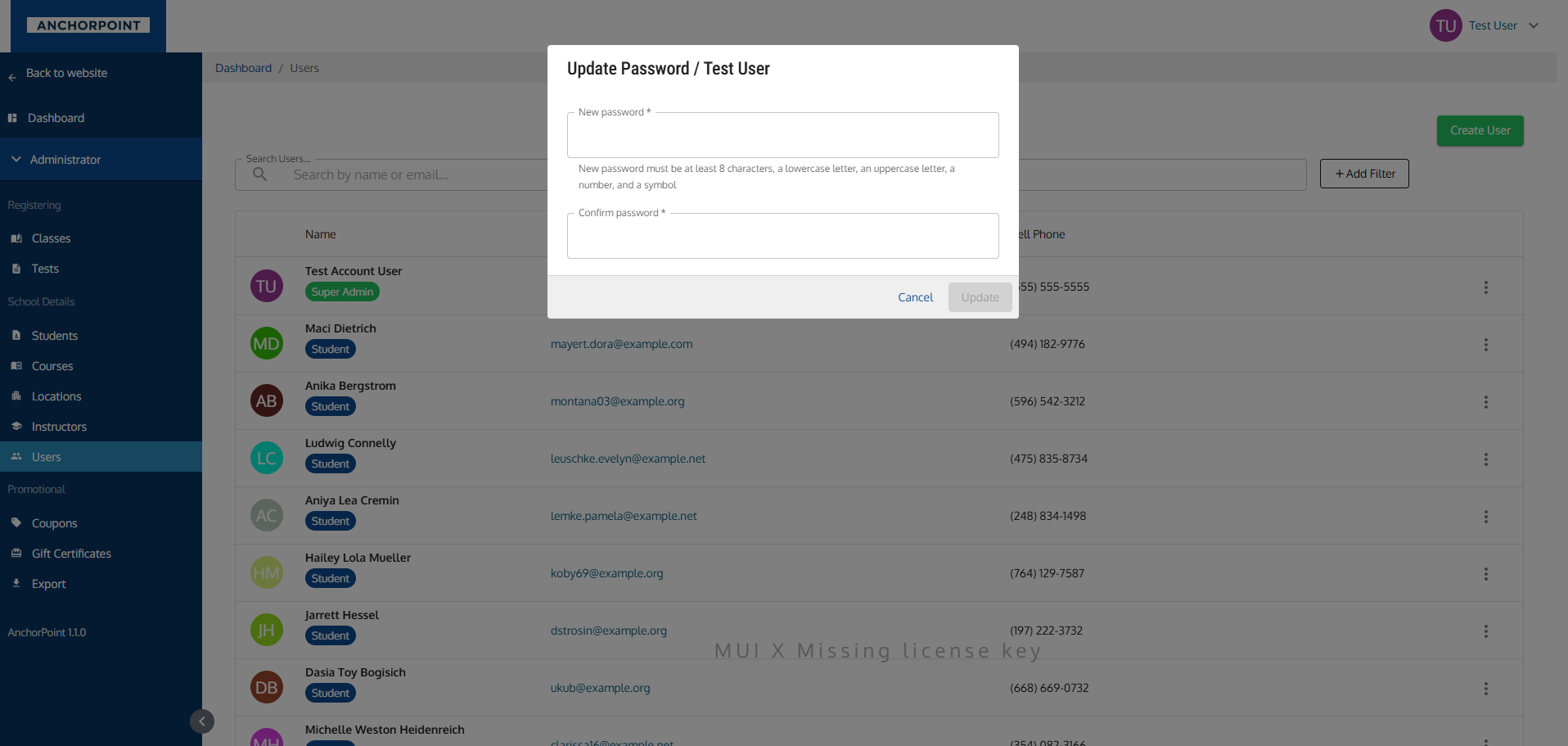
Select Update Password from the actions menu by clicking the 3 dots on a student record to set a new password for a user.
Password Requirements
The new password must meet all of the following:
- At least 8 characters long
- Contains at least one uppercase letter
- Contains at least one lowercase letter
- Contains at least one number
- Contains at least one special character (e.g., !@#$%^&*)
You must type the password twice (in the Password and Confirm Password fields) and both must match.
Managing User Roles
User roles determine what someone can do in the system. The available roles are:
| Role | What It Means |
|---|---|
| Super Admin | Full access to everything, including managing other admins' roles |
| Admin | Administrative access to manage classes, students, courses, etc. |
| Instructor | Can be assigned to teach classes |
| Student | Can be enrolled in classes |
A user can have multiple roles (e.g., someone could be both an Instructor and an Admin).
Adding or Removing Roles
Role management is available from the actions menu on each user row. Only Super Admins can add or remove admin-level roles.
| Action | Who Can Do It | What It Does |
|---|---|---|
| Add Admin Role | Super Admin only | Grants the Admin role to the user |
| Add Superadmin Role | Super Admin only | Grants the Super Admin role to the user |
| Remove Admin Role | Super Admin only | Removes the Admin role from the user |
| Remove Superadmin Role | Super Admin only | Removes the Super Admin role from the user |
You cannot add or remove roles from your own account. These options only appear for other users.
Sending Verification Emails
When a user account is created, the user may need to verify their email address. If a user hasn't verified yet, you'll see an "Unverified" chip next to their name in the table.
To resend the verification email, select Send Verification Email from the actions menu. This option only appears for unverified users.
Actions & Menus
From the Users List
The three-dot menu on each row offers different options depending on the user's status and your own role:
| Action | When It Appears | What It Does |
|---|---|---|
| Update User | Always | Opens the edit form |
| Update Password | Always | Opens the password reset form |
| Send Verification Email | User hasn't verified their email | Resends the verification email |
| Add Admin Role | You are a Super Admin, user doesn't have Admin role | Grants Admin access |
| Add Superadmin Role | You are a Super Admin, user doesn't have Admin role | Grants Super Admin access |
| Remove Admin Role | You are a Super Admin, user has Admin role | Removes Admin access |
| Remove Superadmin Role | You are a Super Admin, user has Superadmin role | Removes Super Admin access |
When Things Are Disabled
Here's why certain buttons or features may be unavailable:
| What's Disabled | Why |
|---|---|
| Role management options (Add/Remove Admin) | You must be a Super Admin to manage other users' roles. If you don't see these options, your account doesn't have Super Admin access. |
| Role options for your own account | You cannot add or remove roles from your own account. Ask another Super Admin to make changes to your roles. |
| Send Verification Email | Only appears for users who haven't verified their email yet. If you don't see this option, the user has already verified. |
| Create / Update button | Temporarily disabled while the form is being submitted. Wait for the action to complete. |
| Update Password button | Disabled until both password fields are filled in and meet the requirements. |
| State field | Only appears when the selected country has states or provinces to choose from. |
| Email field shows error | The email address is already in use by another account. Each user must have a unique email. |
Icons on This Page
| Mark | Meaning |
|---|---|
| Super Admin / Admin / Instructor / Student chips | The roles held |
| Unverified chip | The person hasn't confirmed their email |
| Initials on a colour | No profile photo uploaded |
→ Full list: Icons & Statuses
Key Relationships
- Roles: Users can have multiple roles that determine their permissions and how they interact with the system.
- Students: A user with the Student role has a linked student record (managed in the Students section).
- Instructors: A user with the Instructor role can be assigned to teach classes.
- Verification: Users need to verify their email to fully activate their account.
Tips & Notes
- Check for duplicates before creating. The system prevents duplicate email addresses, but it's good practice to search for a user first to avoid confusion.
- Use the Role filter to quickly find all admins, instructors, or students in the system.
- The "Unverified" chip is a helpful indicator. If a user reports they can't log in, check if they need a verification email resent.
- Be careful with Super Admin access. Only grant it to people who need full system control, including the ability to manage other admins.
- Password requirements are strict for security reasons. Make sure to communicate the requirements to users if you're setting their password manually.
- Role changes take effect immediately. When you add or remove a role, the user's access changes right away — no logout or refresh needed.